ACH Portal — Business User Guide
A self-service portal for processing ACH activity and working the exceptions that come out of it. This guide describes each area of the application and what you use it for.
Signing In
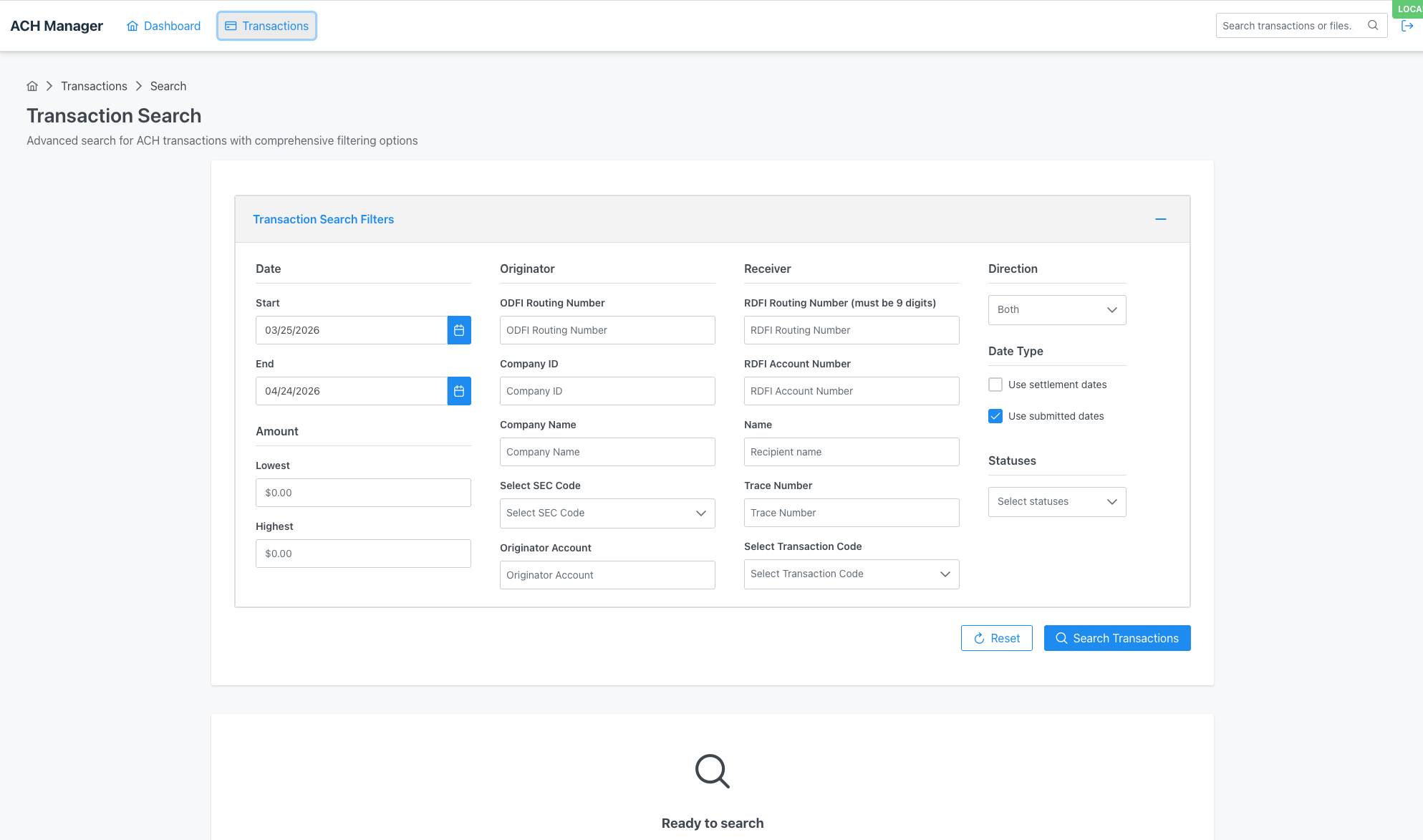
Users authenticate with their company credentials (Keycloak / OIDC). The modules and actions you can see are governed by your assigned role and permissions.
Tasks Dashboard (Home)
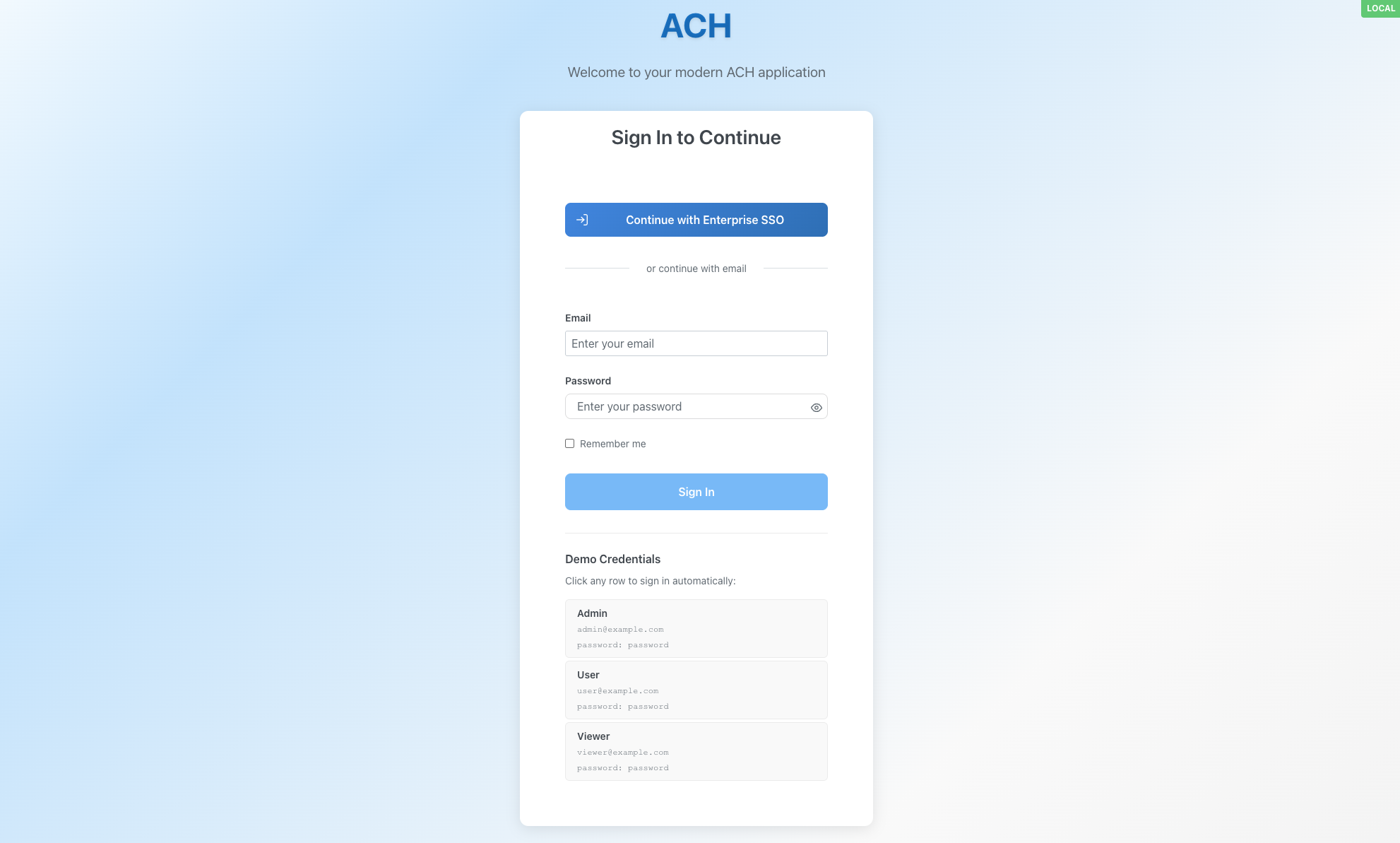
The landing page is a work queue for exceptions, not a generic KPI dashboard. Items that need a human decision surface here, organized into tabs. Each tab shows a live count of outstanding work.
- Over Limit — validations where a transaction exceeded the originator's configured credit or debit limit; awaits review/approval or rejection.
- OFACs — transactions that hit a possible OFAC sanctions match and need compliance sign-off before they can proceed.
- NOCs — Notifications of Change returned by the RDFI (e.g., corrected account or routing number) that need to be acknowledged and applied.
- Exceptions — general exception items that failed validation for other reasons and need research/resolution.
- Completed — history of tasks already resolved.
Clicking into a task opens the Task Details workspace (see below).
Task Details
URL: /transactions/task-details/{taskId} (example: /transactions/task-details/1ce146d0-c03c-486d-b6a9-8e4318608b33)
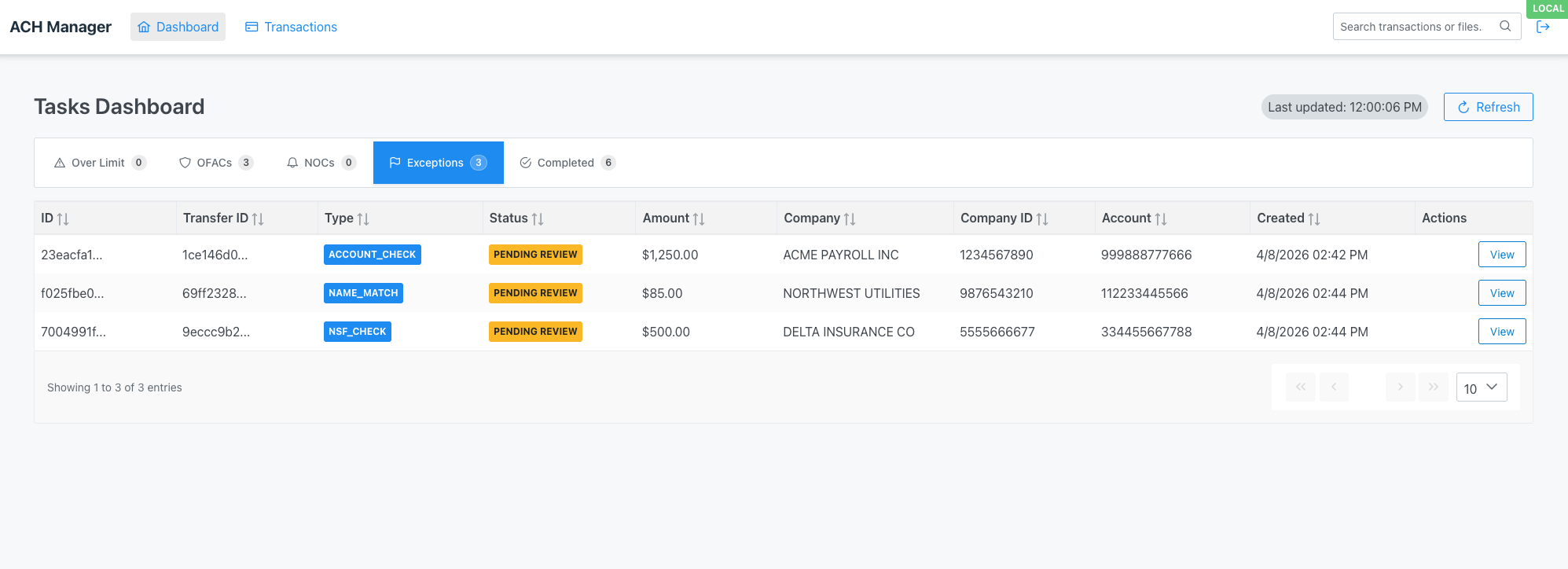
The workspace for reviewing and remediating a single exception task picked up from the Tasks Dashboard. This is where the actual work of clearing an exception happens.
What you can see and do here:
- Task overview — current status, type (Over Limit, OFAC, NOC, Exception), and headline details.
- Exception details — the reason the item was flagged and the data that triggered it.
- OFAC compliance context — for OFAC tasks: the match details and supporting info needed to clear or escalate.
- NOC details — for Notifications of Change: the corrected account/routing information from the RDFI.
- Related transfer information — links back to the original transaction and any related items.
- Remediation context — guidance and history relevant to resolving this specific task.
- Memos — add notes for other reviewers and for the audit record.
- Actions — approve, reject, or otherwise resolve the task directly from this page.
Transactions
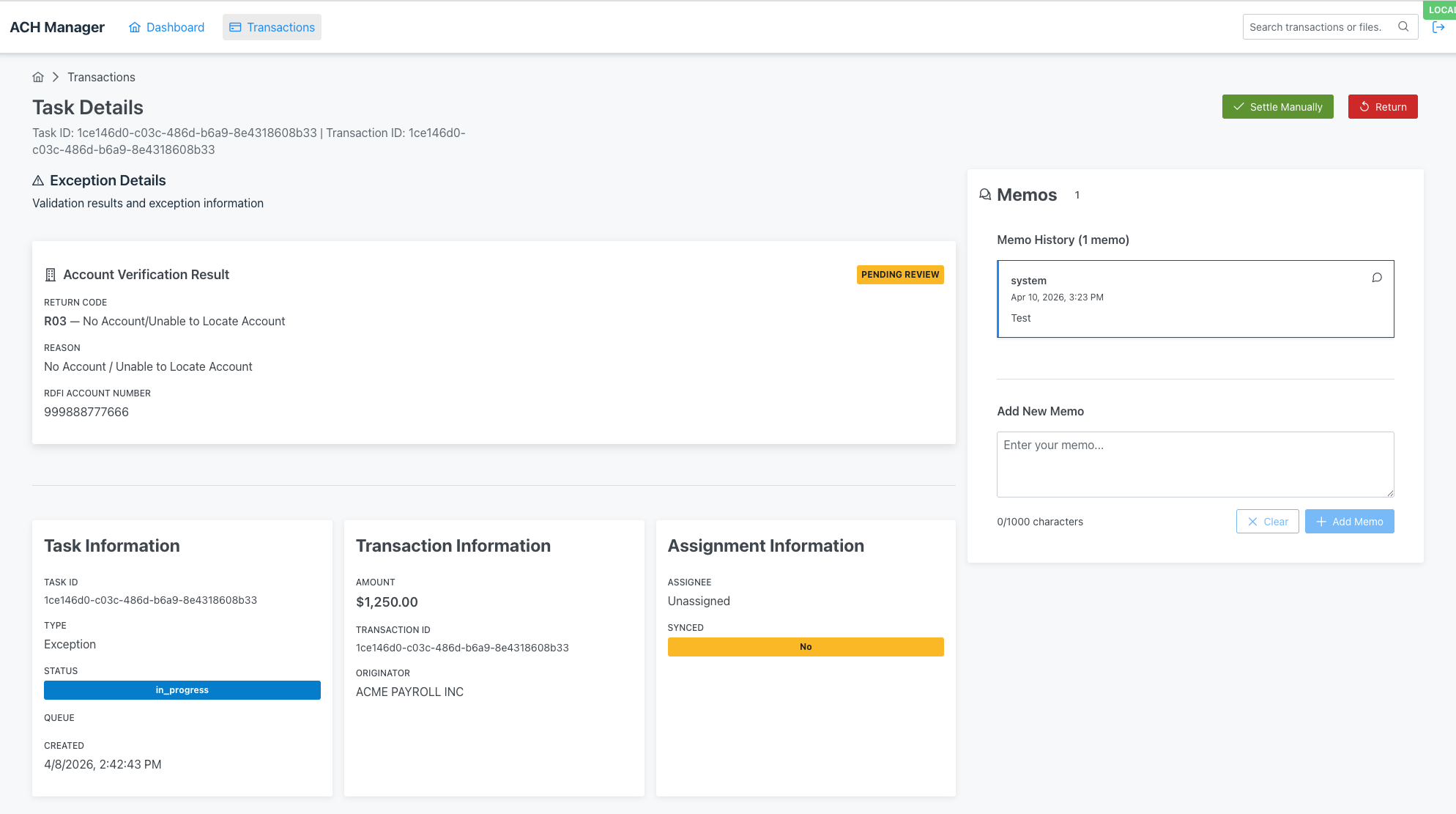
Where you search for individual ACH items and work them.
- Search — the default view. Filter by date, amount, status, account, SEC code, and more. Primary way to find a specific transfer.
- Create — originate a new single transaction (optionally in the context of a specific batch).
- Edit — modify a transaction before it is submitted.
- Import — bulk-load transactions from a file.