Log In and Access
Two (2) methods exist to log in and access the Secure Module, and you may be assigned to use one or the other method:
- Log in Directly to the Secure Module
- Log in to the PortX Platform, Navigate to PortX Integration Manager, then to the Secure Module
Log In—Directly to the Secure Module
This direct login to the Secure Module authenticates the User and access is granted according to User’s assigned Role in the system. This direct access to the PortX Identity Access Management (PIAM) System to manage the PIAM itself is convenient.
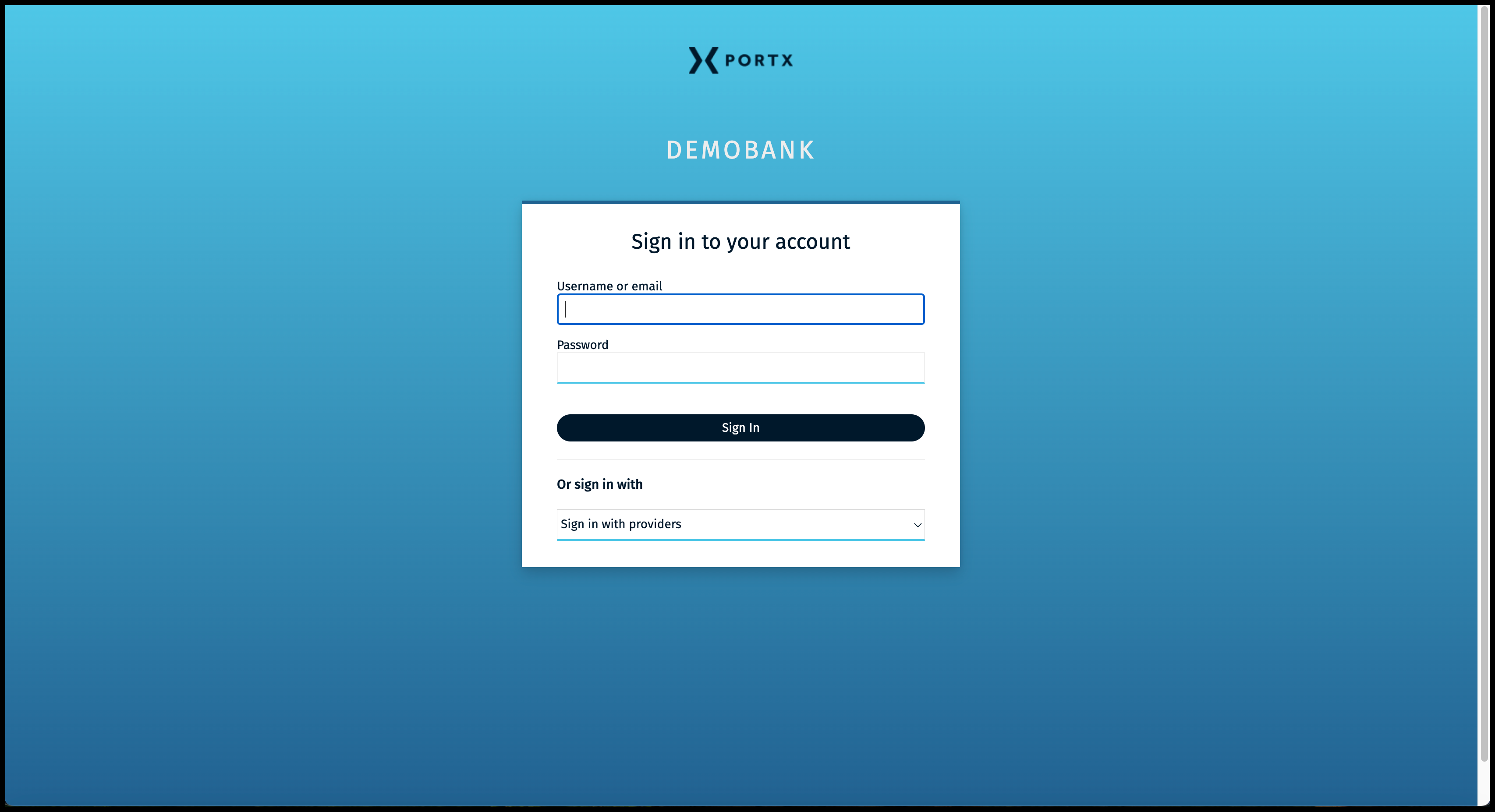
Login to PIAM portal https://< tenant >.piam.tenants.portx.io/ using GoogleSAML
Enter your organization name instead of < tenant >
In these examples the company name is “DemoBank.” Your organization name appears instead of “DemoBank.”
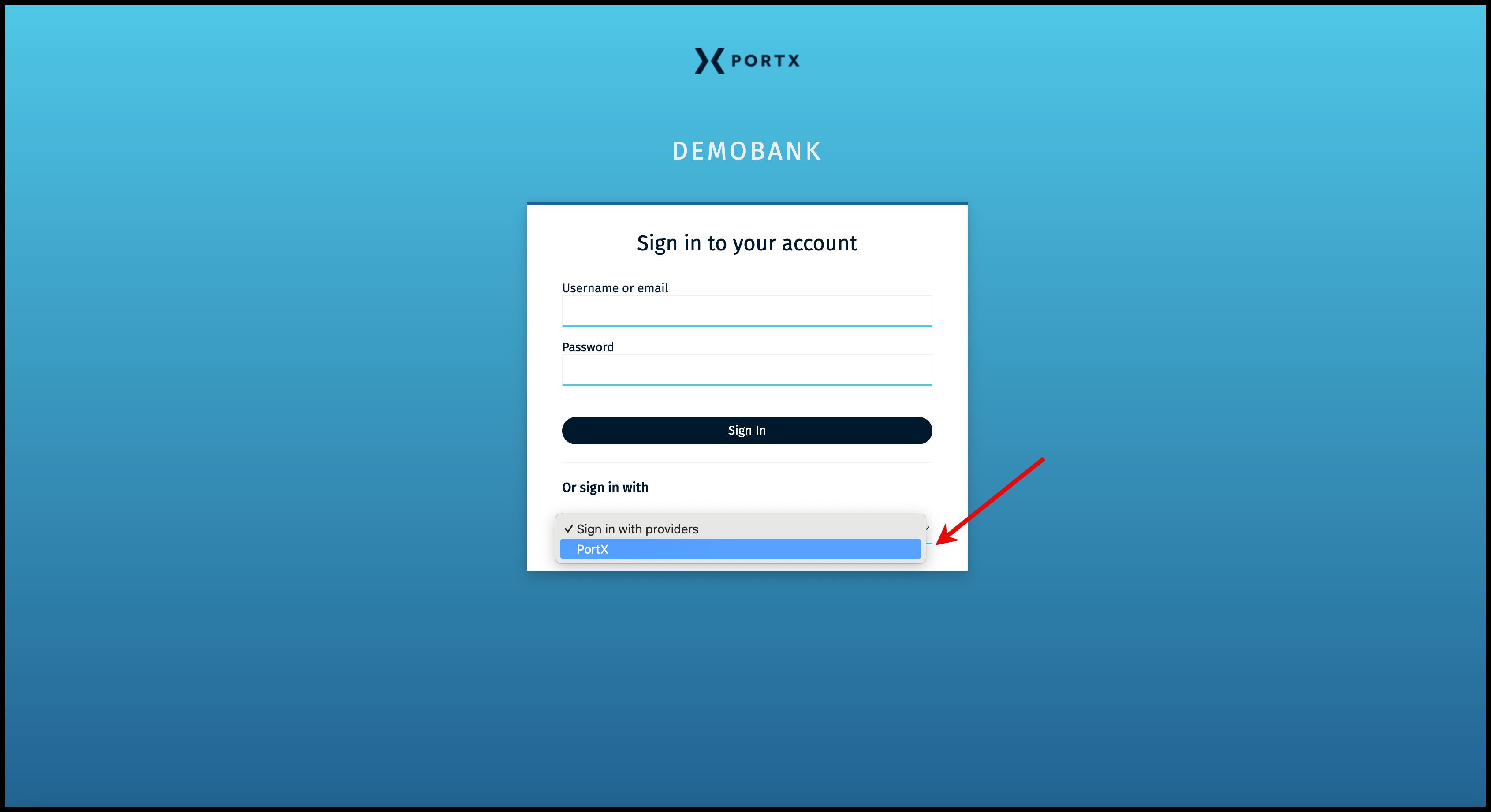
Click on the Sign in with Providers drop down menu (arrow in Figure 10).
Select your provider name. (In this example in Figure 10 it is “PortX.”)
The Account login page appears (as shown in Figure 11).
Your login details may be different.
The following example shows login with SSO.
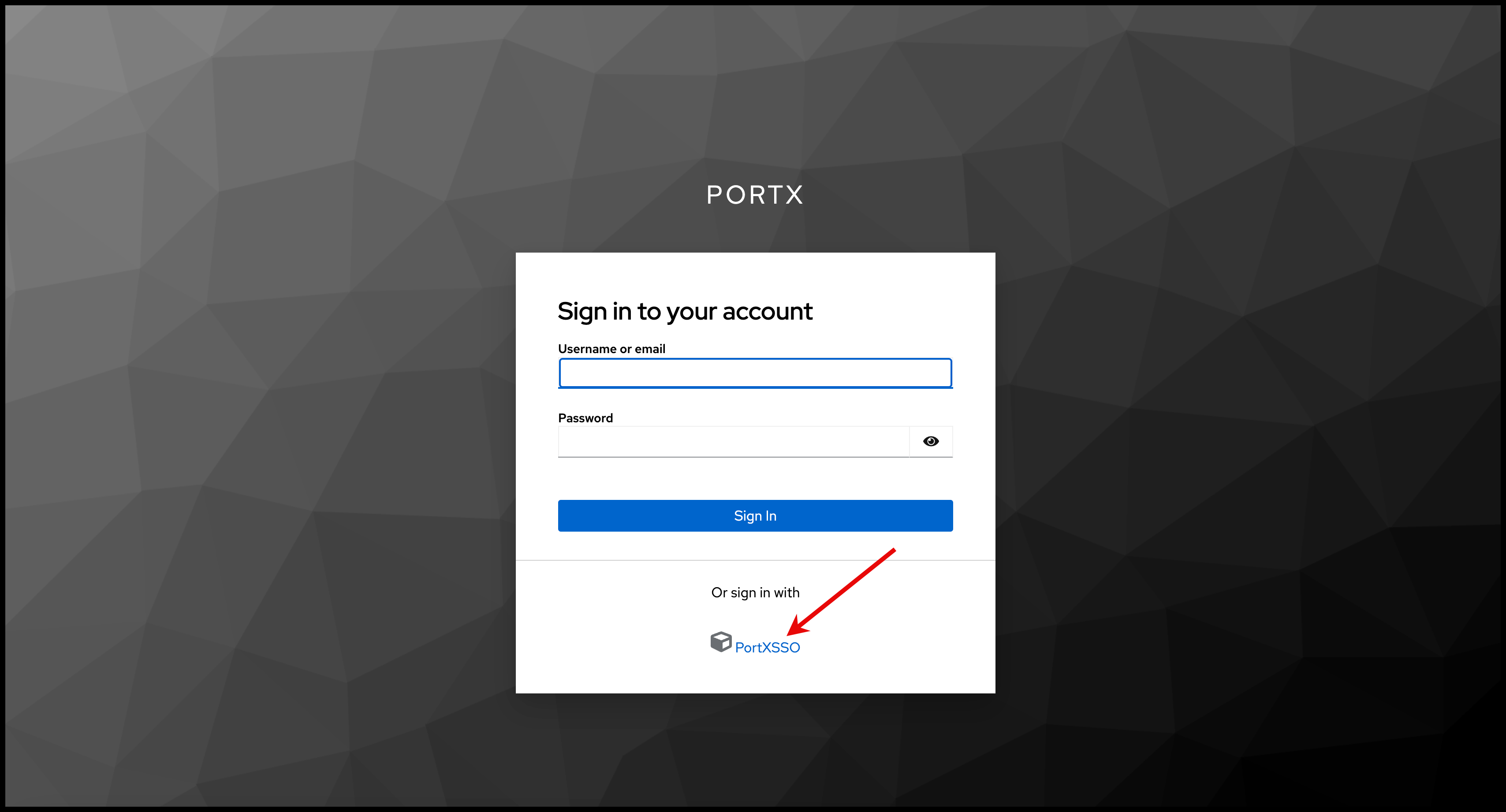
Click on your organization’s SSO. (In Figure 11 the example is “PortXSSO.”)
The PortX Integration Manager—Secure Module main page of Manage API Roles opens (as shown in Figure 12).
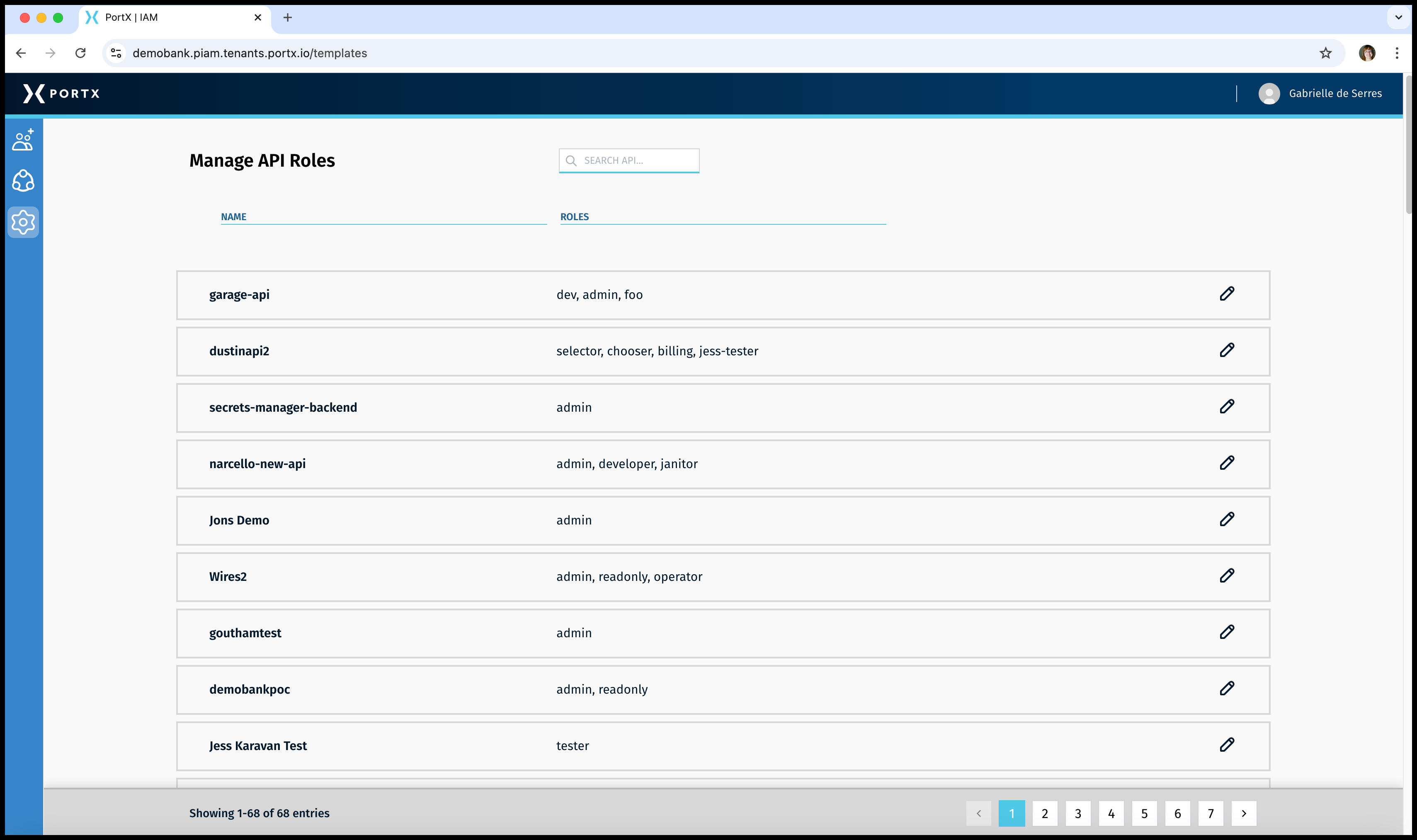
You are successfully logged in.
Log In—To the PortX Platform, Navigate to PortX Integration Manager, then to the Secure Module
The other method of logging in and accessing the Secure Module is through the PortX Platform through the following steps:
- Log in to the PortX Platform
- Select the PortX Integration Manager
- Select the Secure Module, the PortX Identity Access Manager (PIAM)
Obtain the URL to log in.
Enter the URL and your Login screen appears similar to Figure 13.
In these examples the company name is “DemoBank.” Your organization name appears instead of “DemoBank.”
Click on the Sign in with Providers drop down menu (arrow in Figure 14).
Select your provider name. (In this example in Figure 14 it is “PortX.”)
The Account login page appears (as shown in Figure 15).
Your login details may be different.
The following example shows login with SSO.
Click on your organization’s SSO. (In Figure 15 the example is PortXSSO.)
The PortX Platform Main Page opens (as shown in Figure 16).
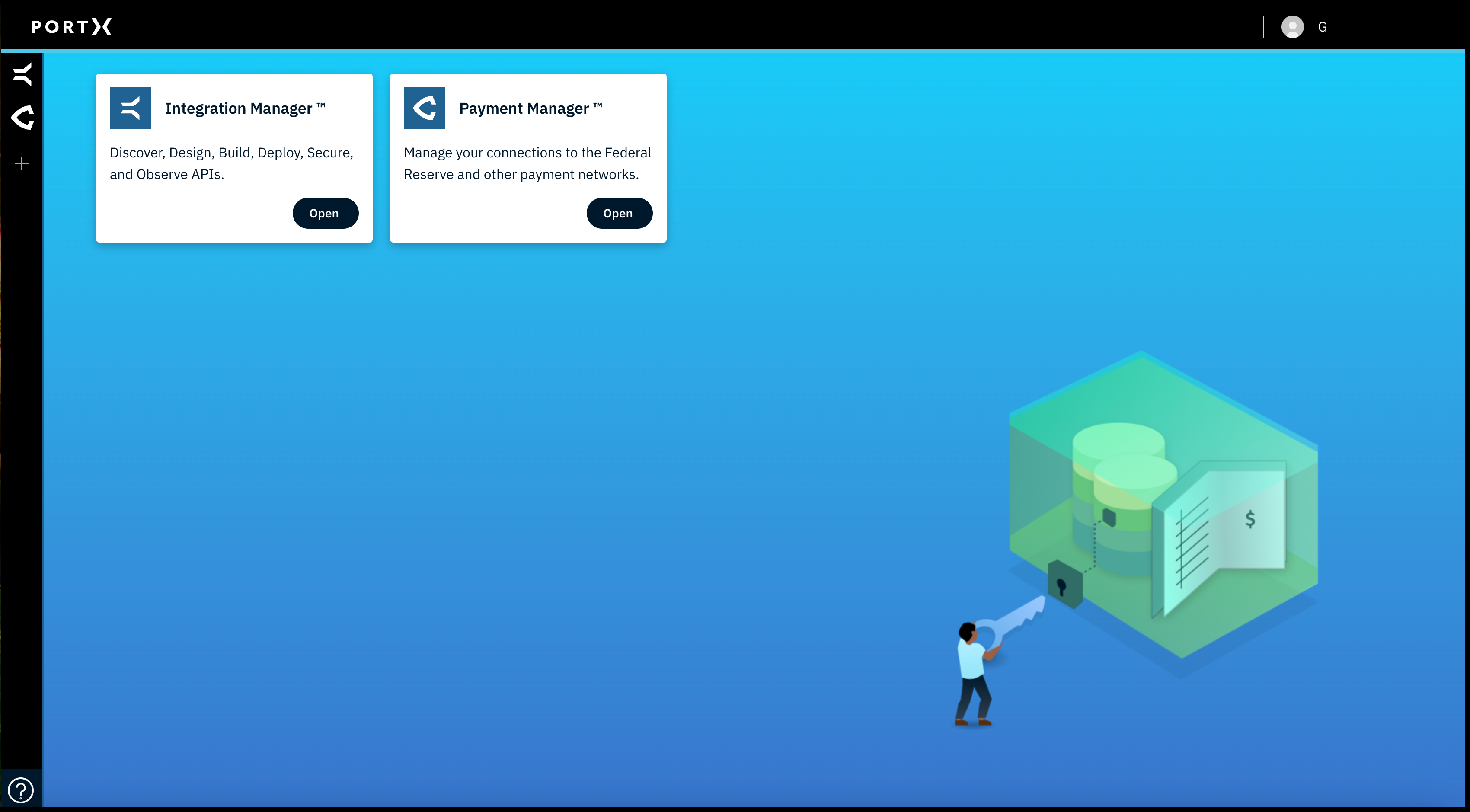
Note: Different Roles see and access different Products on this page. So a particular Role may not see all the Products. Most Roles only see one Product.
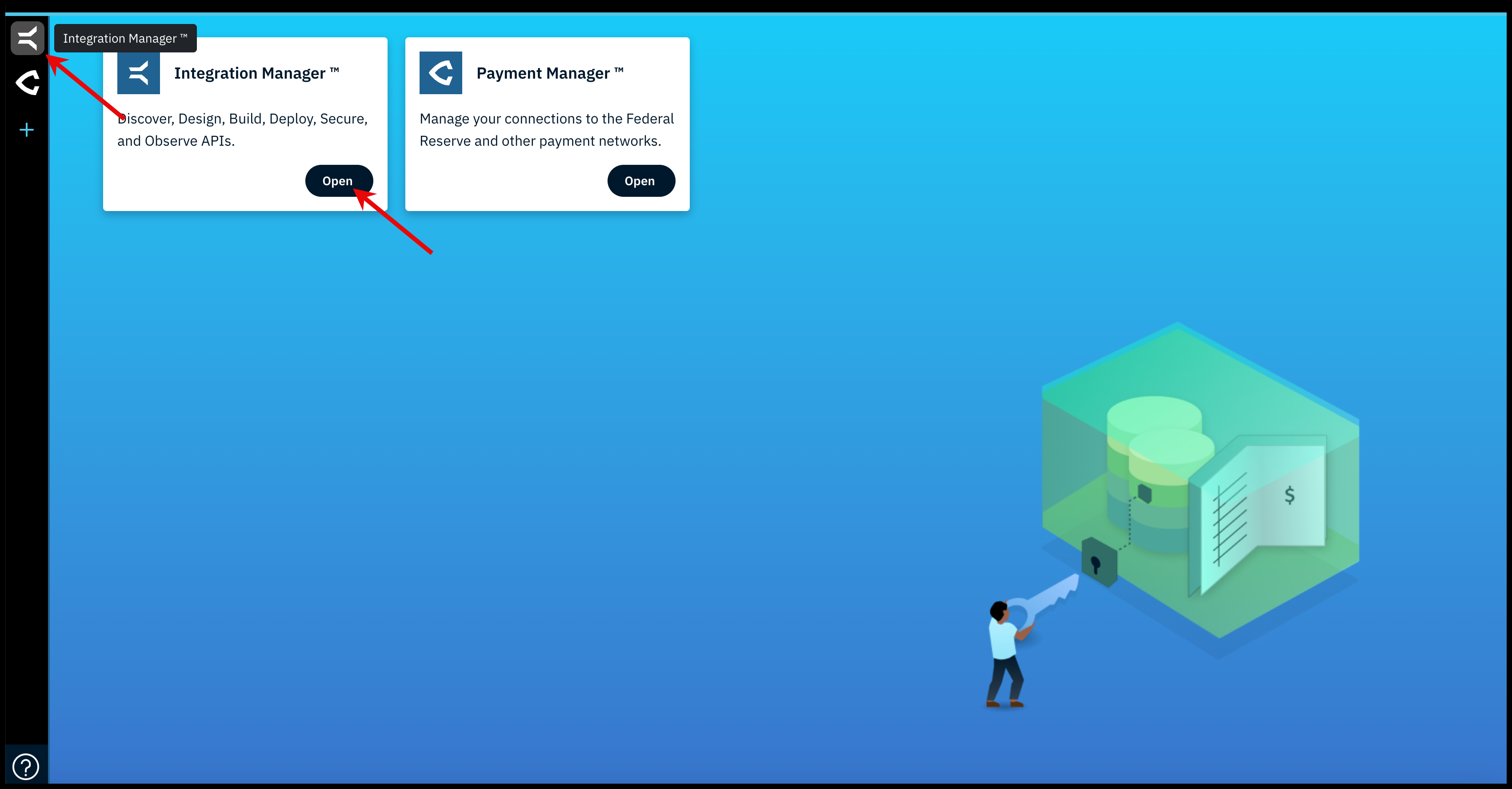
On the PortX Platform Main Page, you select the Product. (Most team members only see 1 Product.) Select Integration Manager through 1 of the 2 different methods shown in Figure 17:
- The Left Navigation Product Menu Bar (black colored)—select the Integration Manager icon (Figure 17 upper far left arrow)
- The Product Rectangles on the PortX Platform Main Page—in the Integration Manager Product rectangle, click on the Open button (Figure 17 lower arrow)
The PortX Integration Manager Main Page opens (as shown in Figure 18).
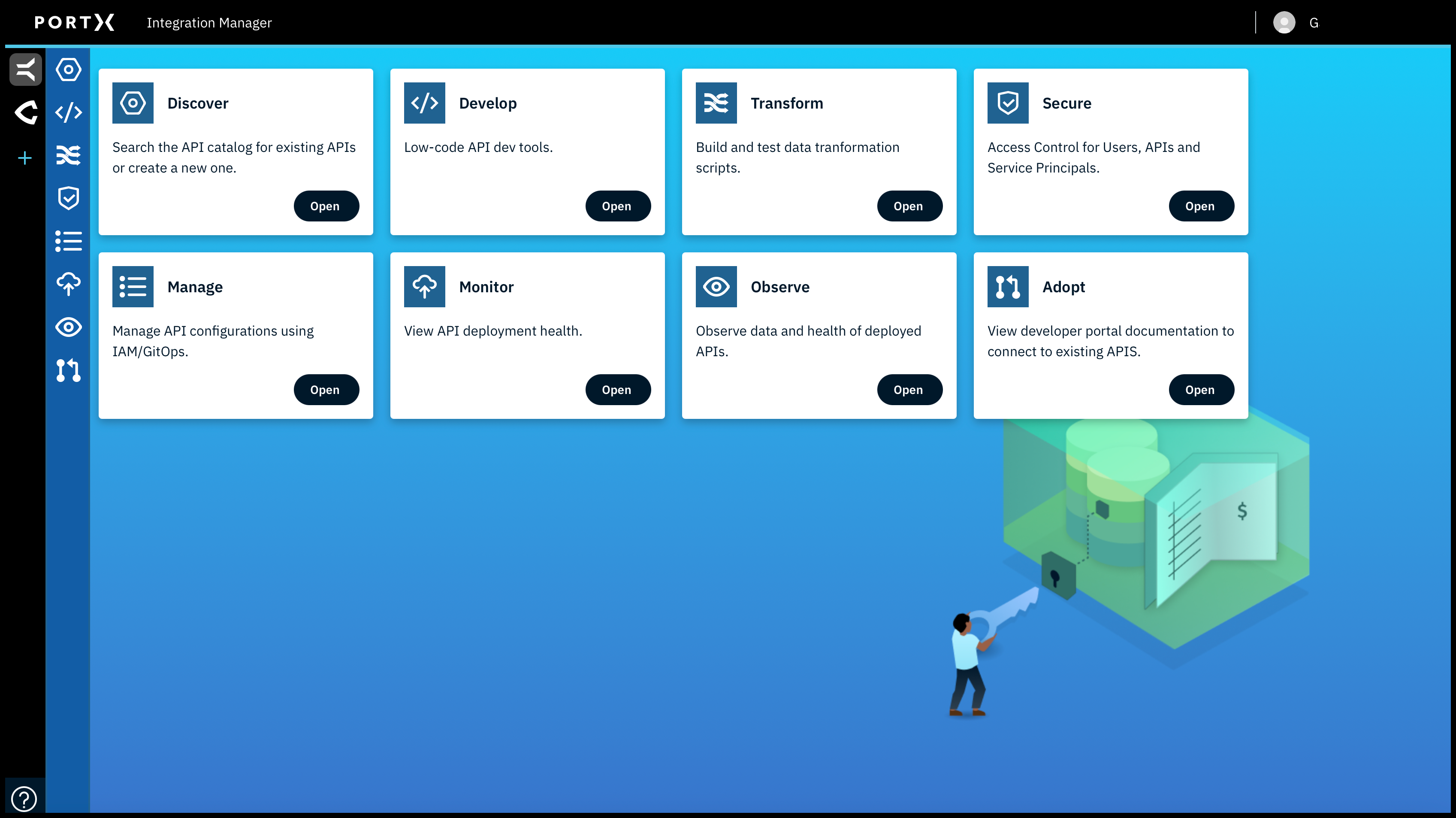
Note: Different Roles see and access different Modules on this page. So a particular Role may not see all the Modules.
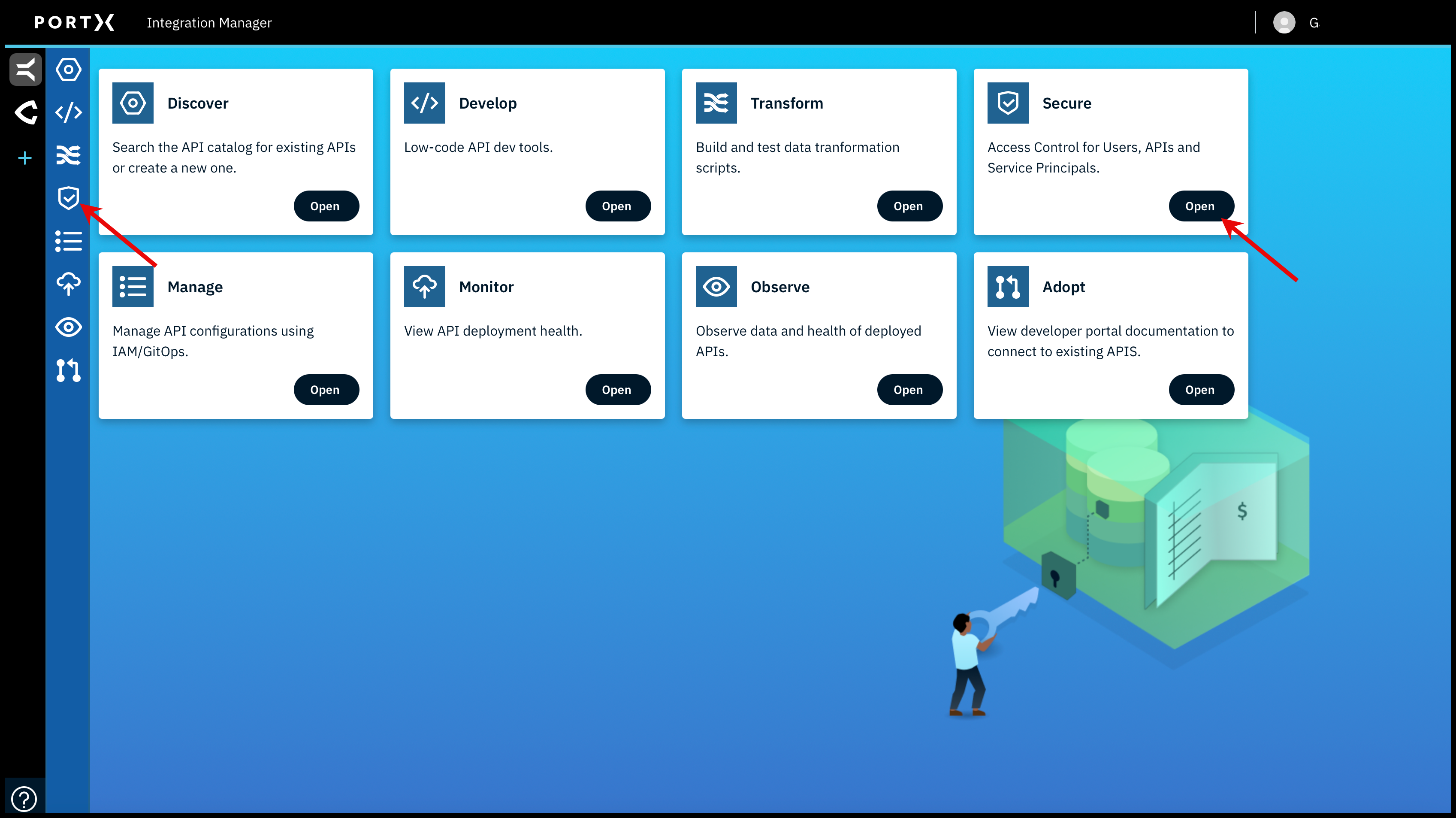
From the PortX Integration Manager Main Page, click on the Secure Module through either of 2 methods (as shown in Figure 19):
- The Left Navigation PortX Integration Manager Module Menu—select the Secure icon (Figure 19 left arrow)
- The Modules on the PortX Integration Manager Page—in the Secure Module rectangle, click on the Open button (Figure 19 right arrow)
The Secure Module Main Page of Manage API Roles opens (as shown in Figure 20).
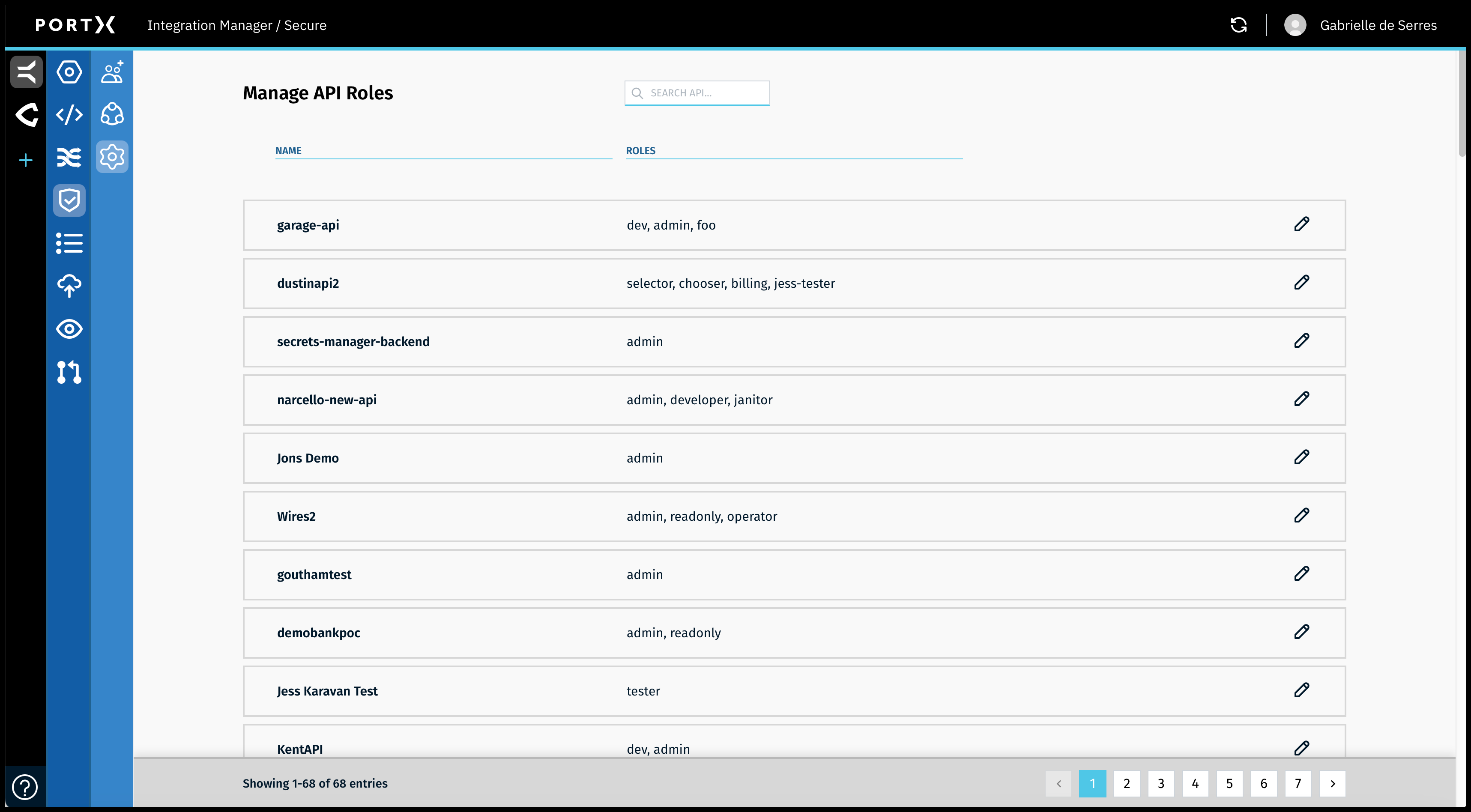
You are successfully logged in.