Manage Service Principals
Manage Service Principals—Intro, Search, Copy to Clipboard
The Manage Service Principals enables Users to perform the following activities for an OAuth Service Principal or a Financial-Grade API (FAPI) Service Principal:
- Search for, or Filter for a Service Principal
- Copy different pieces of information of the Service Principal to the Clipboard
- Create (ADD) a new Service Principal—choose which security type when you create each one:
- OAuth and Client Secret
- FAPI and Credential
- Assign Roles to current Service Principals
- Update a Service Principal's credentials
- EDIT (Change) a Service Principal
- DELETE a Service Principal
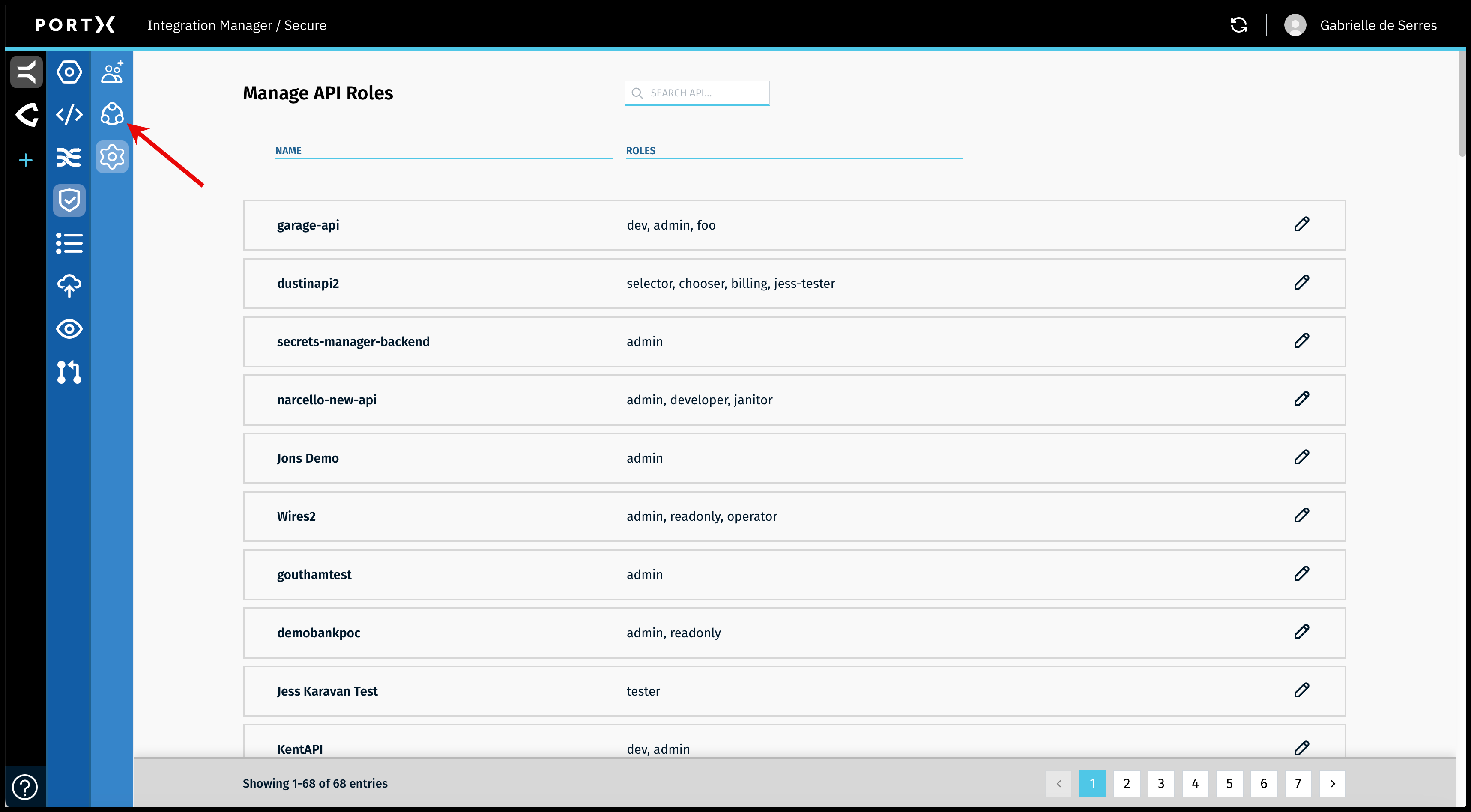
On the Secure Module Main Page which is the Manage API Roles page, click on the Left Navigation Secure Module sub-menu—Principals icon (as shown in Figure 63).
The Secure Module—Manage Service Principals page opens (as shown in Figure 64).

Search for, or Filter Service Principals
When searching for, or filtering the Service Principals on the Manage Service Principals page, the search feature is dynamic. The search or filter occurs with each keystroke you enter.
Search or Filter by any of the following criteria:
- Any part of the Service Principal name
- Any part of the Client ID
- Any part of the Type which is any part of the words of “Secret” or “Credential”
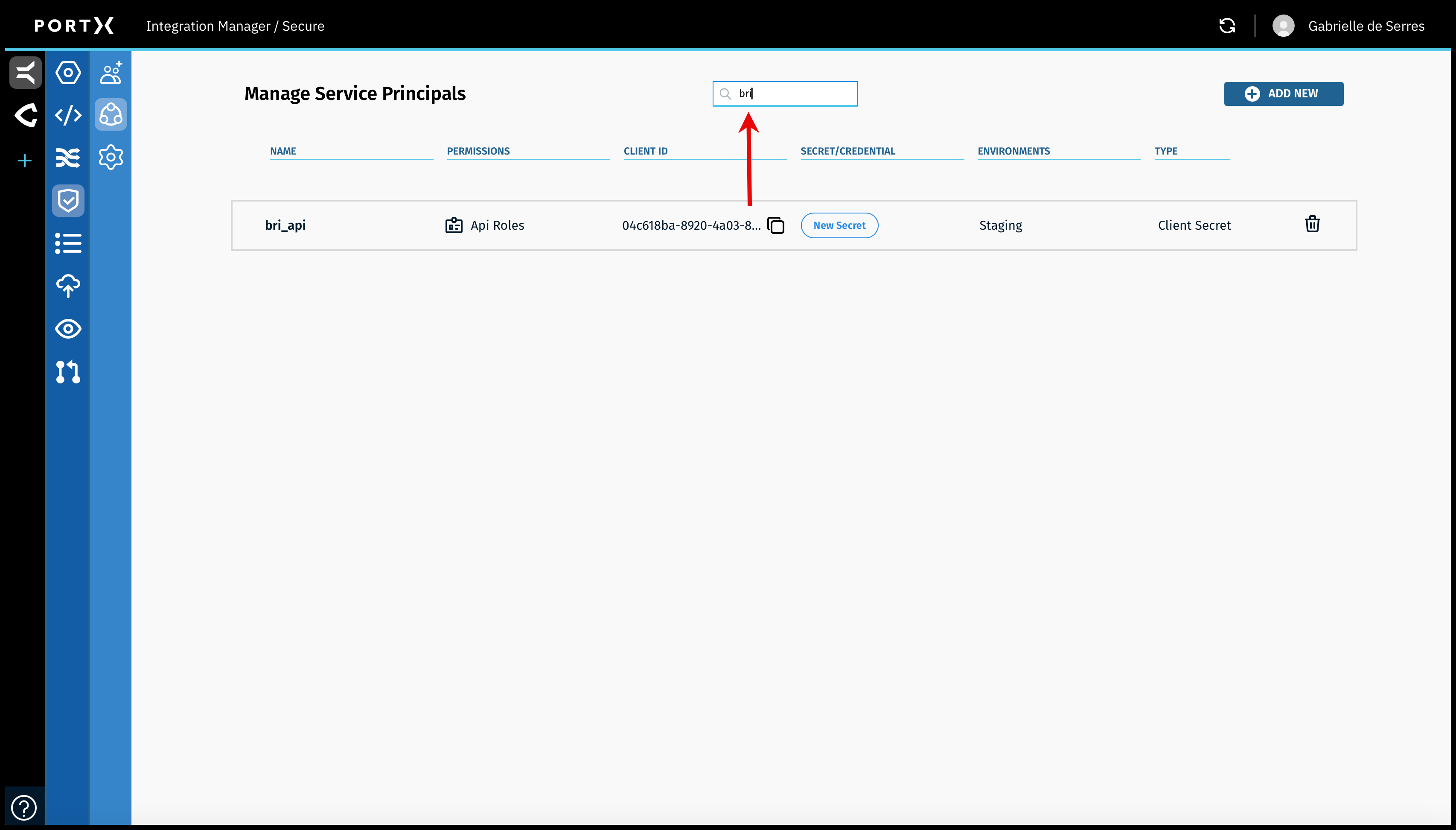
Copy to Clipboard Service Principal Name, Client ID, Environment, Type
A convenient feature is being able to copy to the Clipboard, one item at a time, the following pieces of information:
- Service Principal Name
- Client ID—not sensitive and is visible. The Client ID is different than the Client Secret (for OAUTH) or the Credential (for FAPI) which are each sensitive and are not visible.
- Environment
- Type
- Client Secret (for OAUTH)
- Signed JWT (for FAPI)
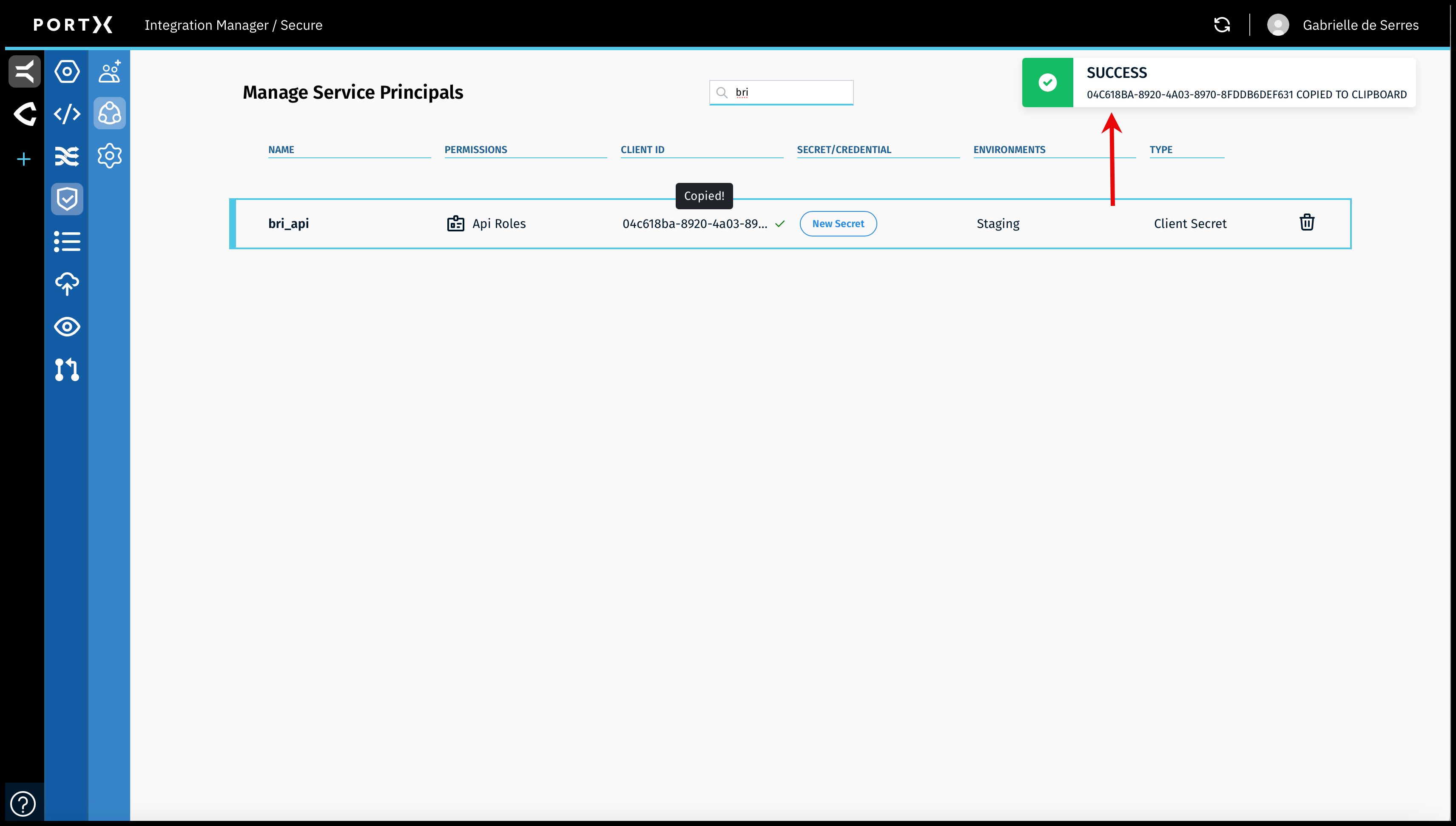
To copy the Client ID for OAUTH or FAPI, click on the number itself (as shown in Figure 66) or on the page icon next to it (as seen in Figure 67).
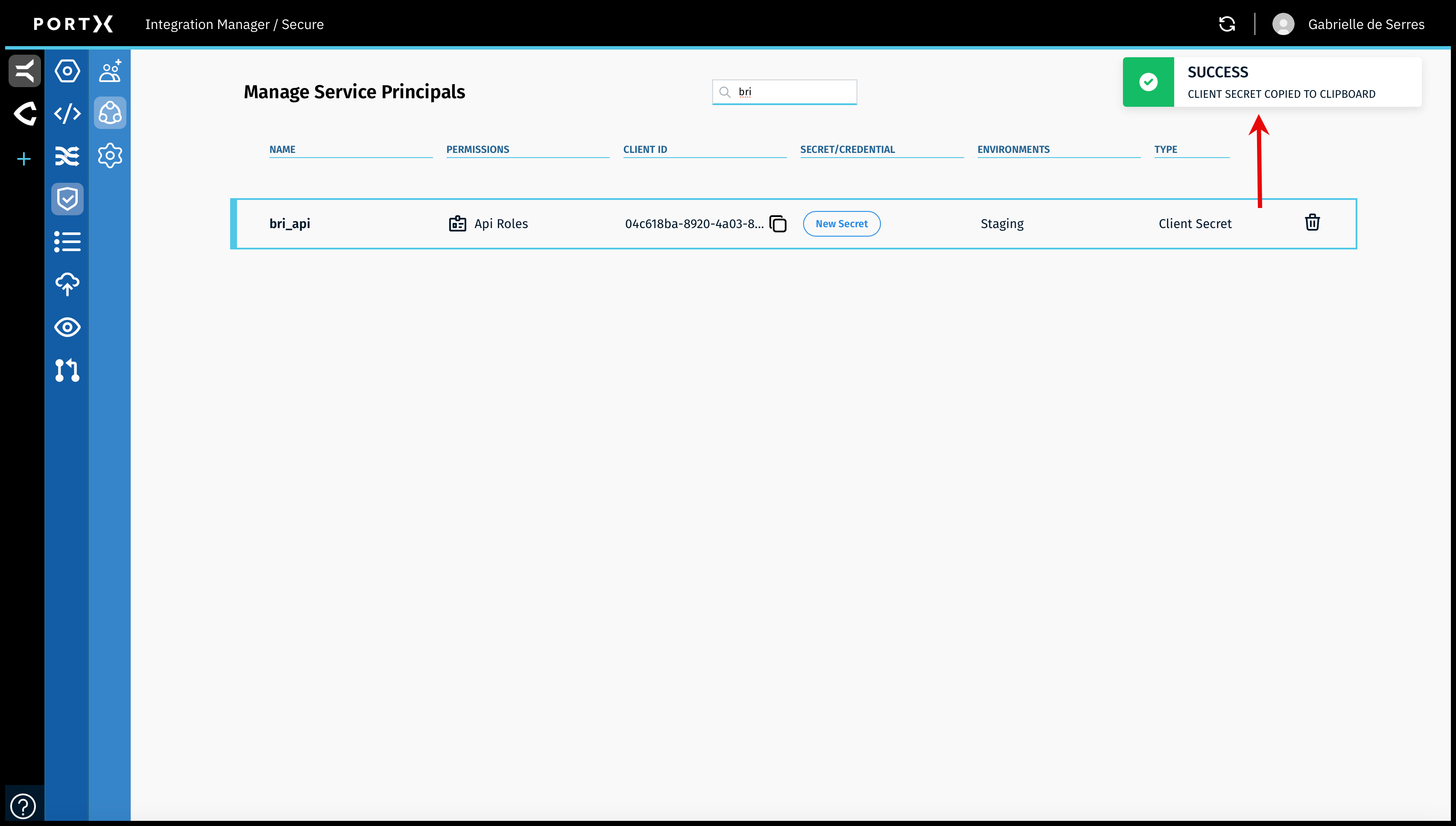
When you have successfully copied the piece of information, a confirmation Success banner message stating what you copied, with a green check mark in the upper right of page, appears BRIEFLY (a couple of seconds) as shown in Figure 66 and Figure 67.