Manage Users
Manage Users—Intro, Search, Export as CSV, Copy to Clipboard
The Users and their access that interact with the APIs, are managed on the Secure Module—Manage Users pages.
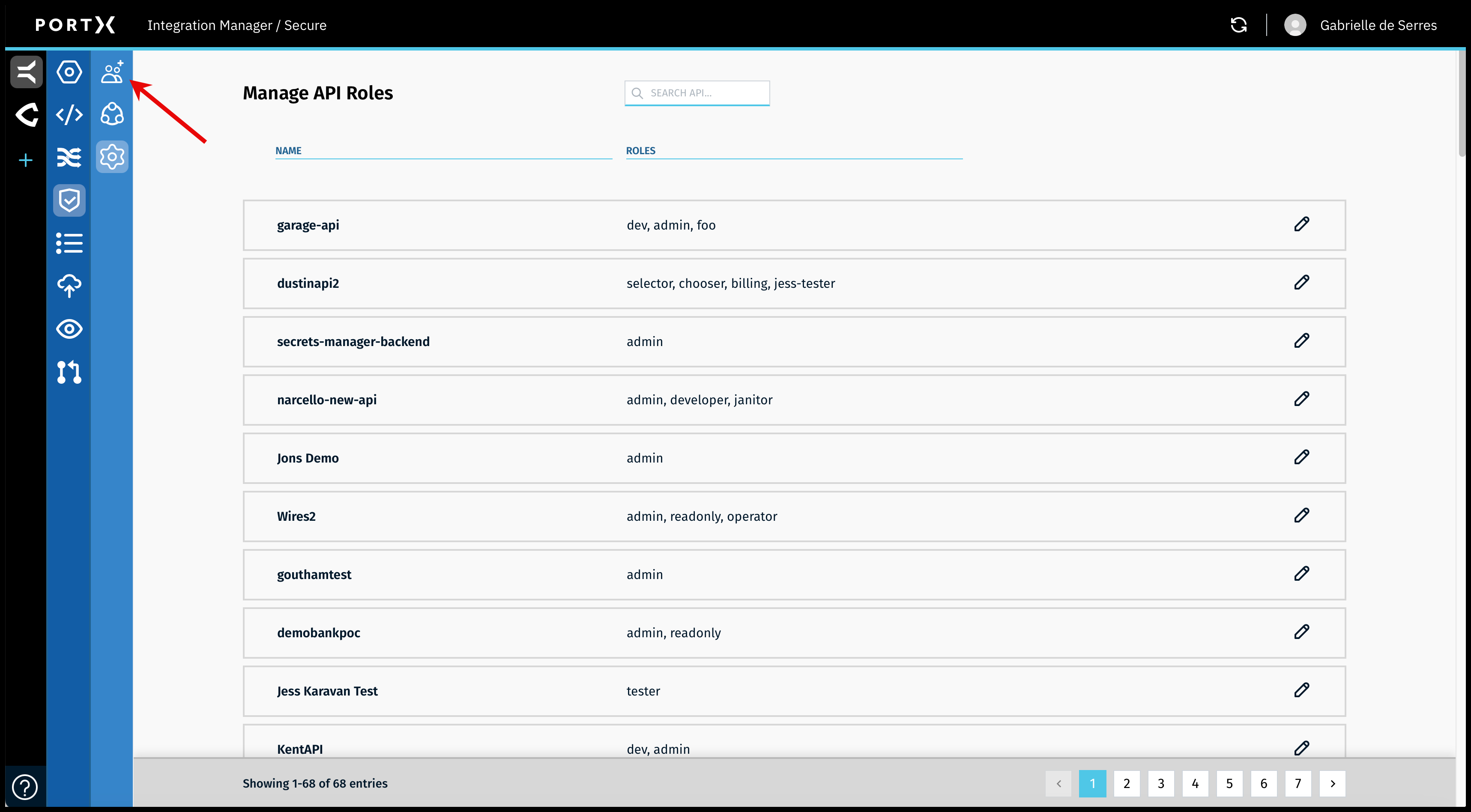
On the Secure Module Main Page which is the Manage API Roles page, click on the Left Navigation Secure Module sub-menu Users icon (as shown in Figure 21).
The Secure Module—Manage Users page opens (as shown in Figure 22).
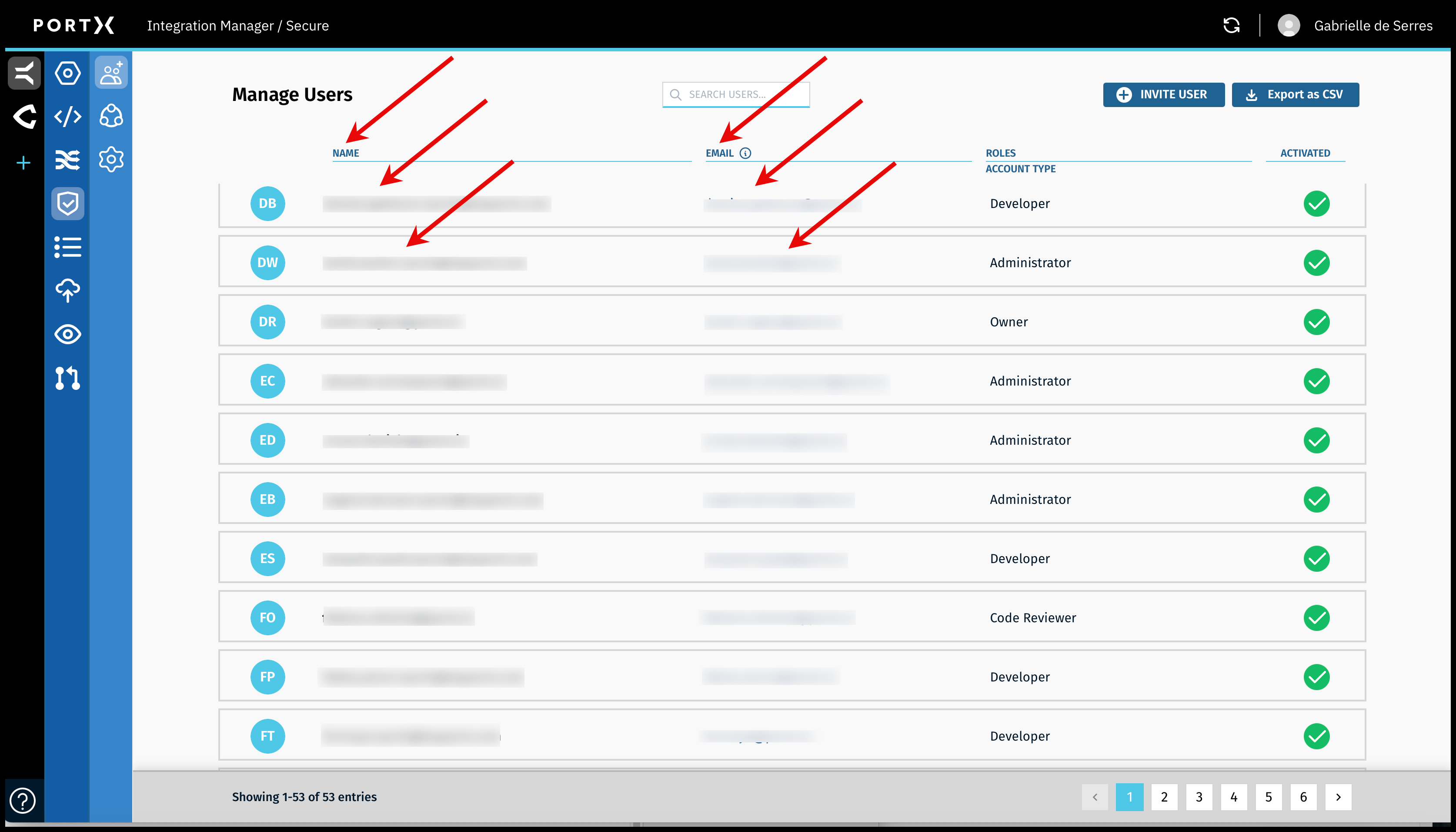
Figure 22 shows the following columns from left to right:
- Users' initials
- Users' names as shown with the left arrows (confidential information is blurred in Figure 22)
- Users' email addresses as shown with the right arrows (confidential information is blurred in Figure 22)
- Users' Roles
- Users' Status—one of the following statuses:
- Green check mark—Activated
- Red “x”—Deactivated
Search for, or Filter All Users
On the Manage Users page, Figure 24 shows the following features:
- Search feature (left arrow)
- Export List of Users as CSV button (right arrow)
To search, find, or filter the Users by name, email address, or Role name, use the search feature (Figure 23 left arrow).
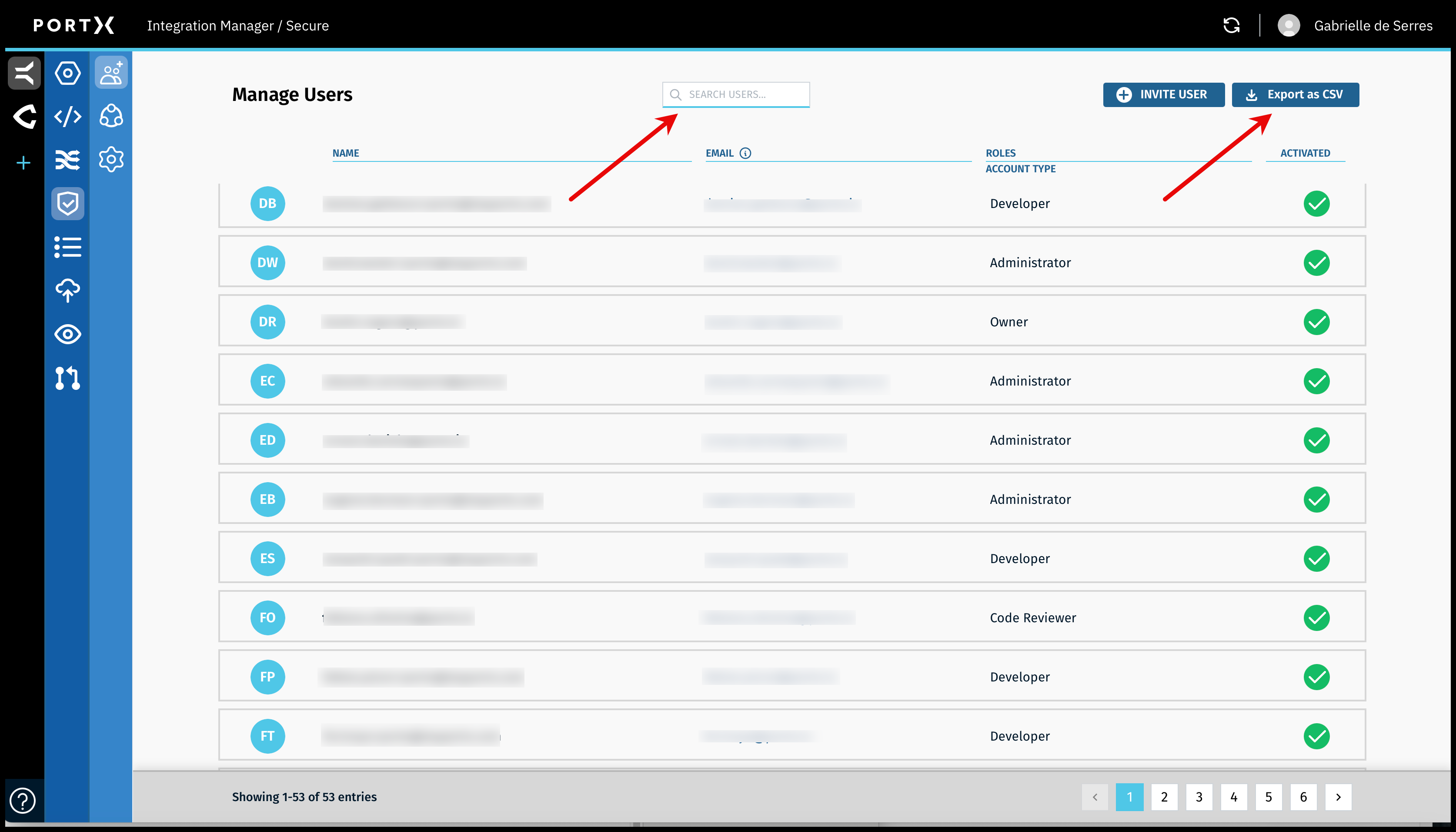
On the Manage Users page, in the Search feature (Figure 23 left arrow) enter alphanumeric or special characters, to search or filter.
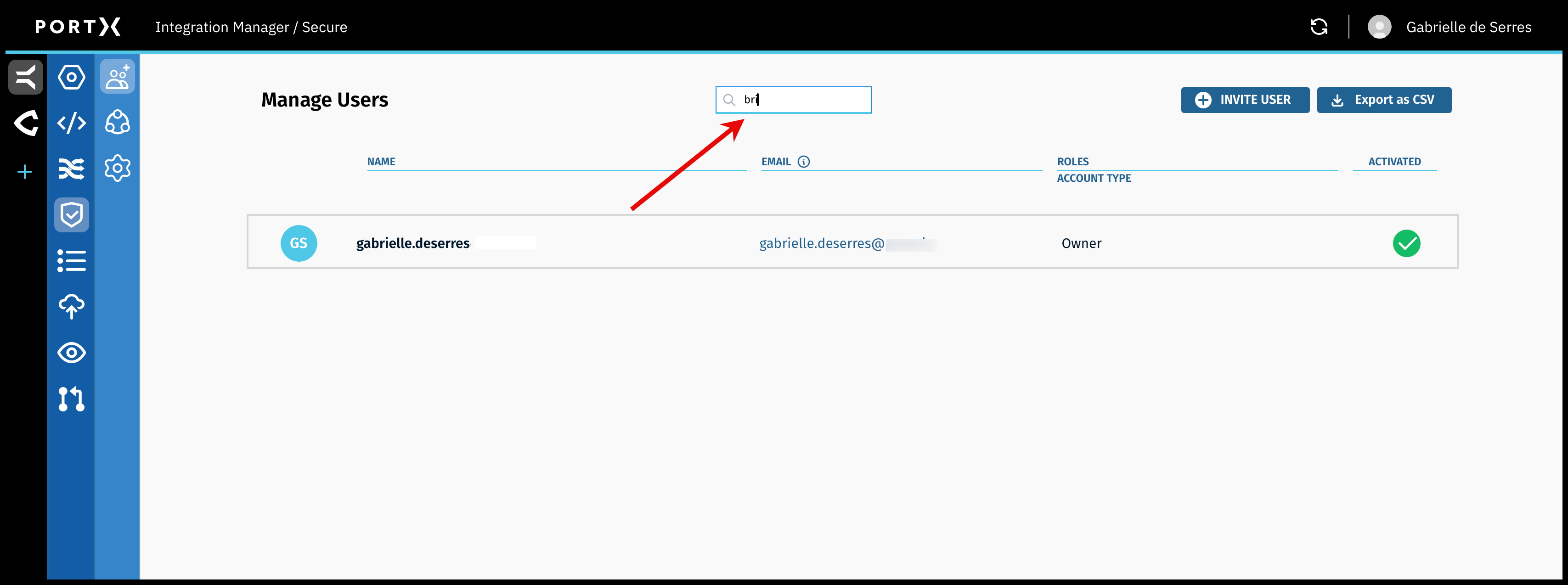
The search-filter function filters dynamically with each key stroke (as shown in Figure 24).
Export List of Users as CSV File
To export the list of Users as a CSV file, click on the Export as CSV button (Figure 23, right arrow).
The first time you click on that button to export the file, your browser may request you confirm whether you want to allow downloads, with a message similar to the one shown in Figure 25 (the internal URL is blurred in this example).
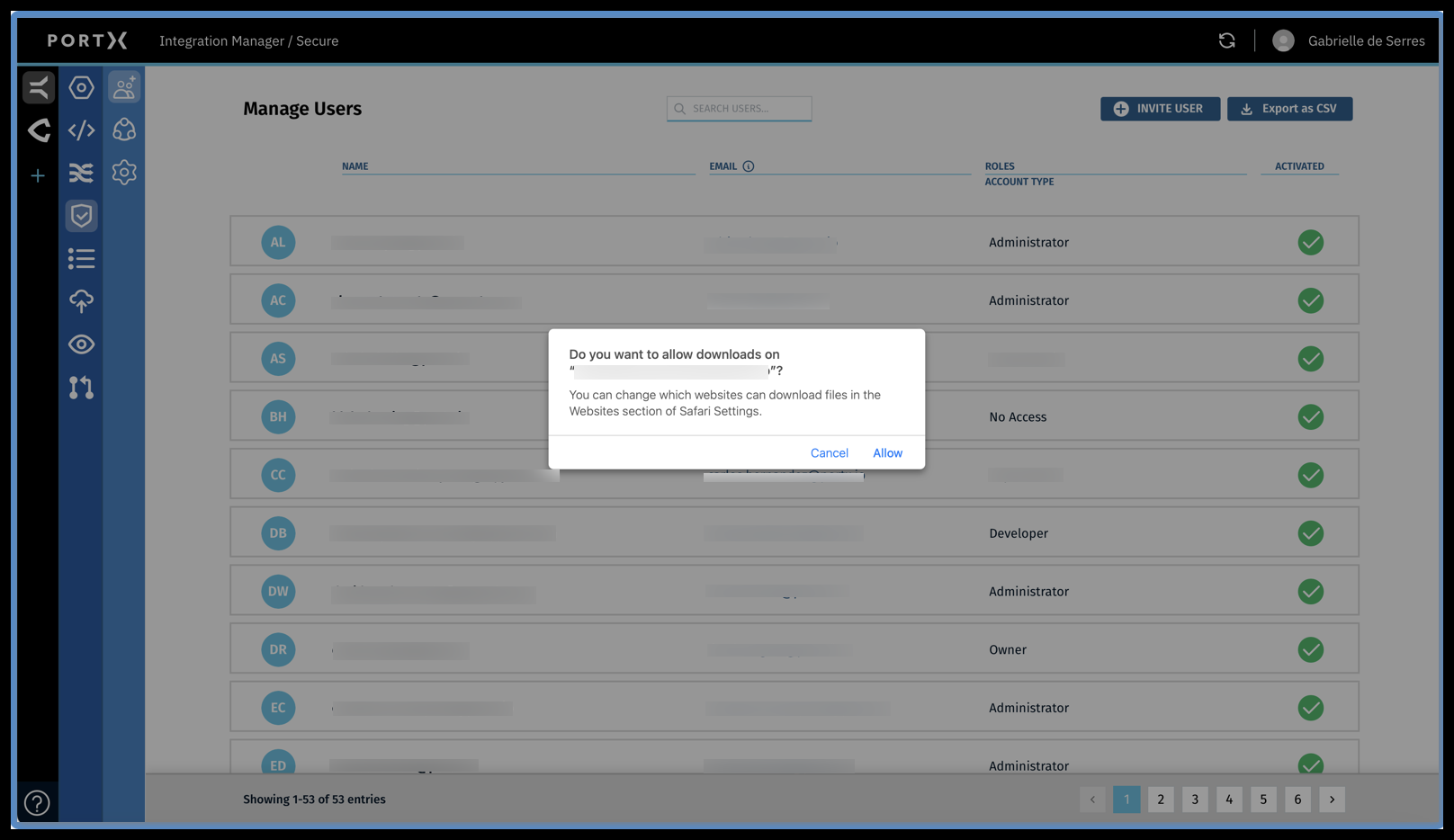
After approving downloads, any time you export the List of Users as a CSV file, the file downloads into your downloaded files folder and does not show the Browser message again.
Copy Email Address to Clipboard
A convenient feature. Copy the email address to the Clipboard for use anywhere else, such as in email.
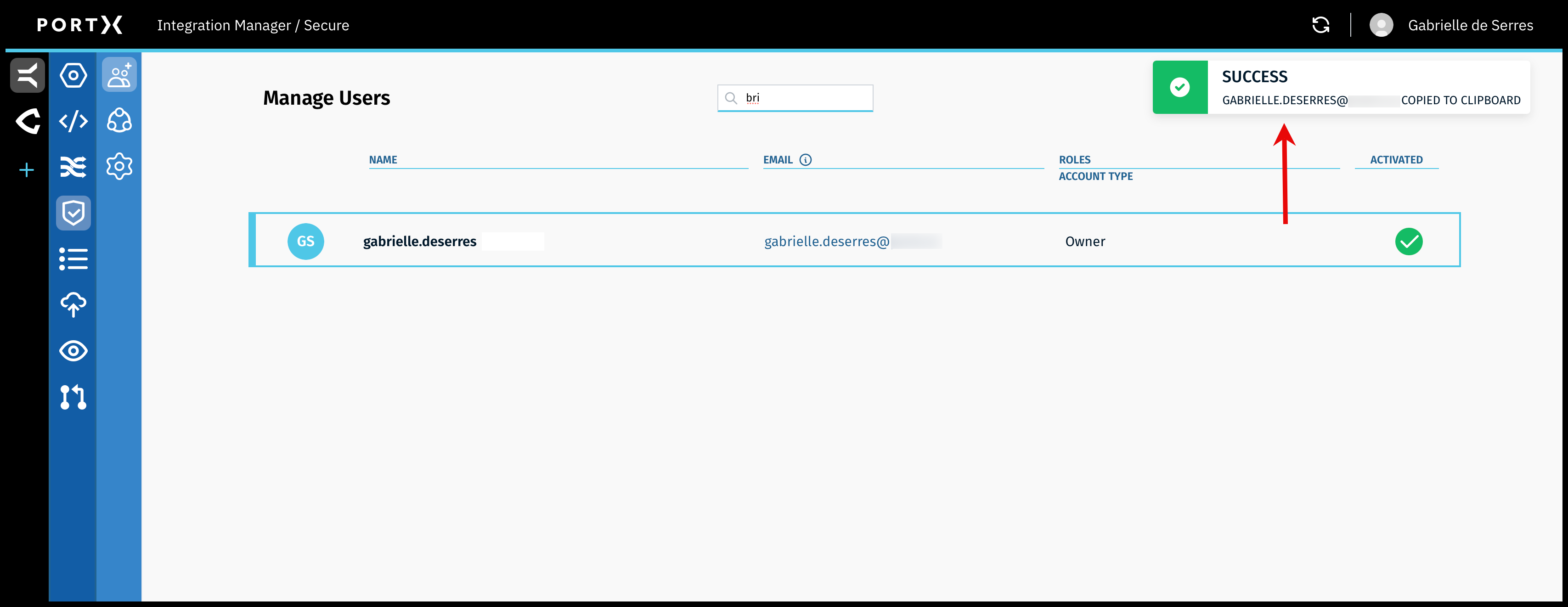
In the row of a list of users, the middle column shows the email addresses.
Click on the email address of the User, and the email address is saved to the Clipboard. (If you click on the name of the User, their record opens instead and does not save their email address to the Clipboard.)
A confirmation Success banner message with a green check mark in the upper right of page appears BRIEFLY (a couple of seconds) as shown in Figure 26.