New Customer
For the new Customer to log in to PortX, the new Customer needs the following items:
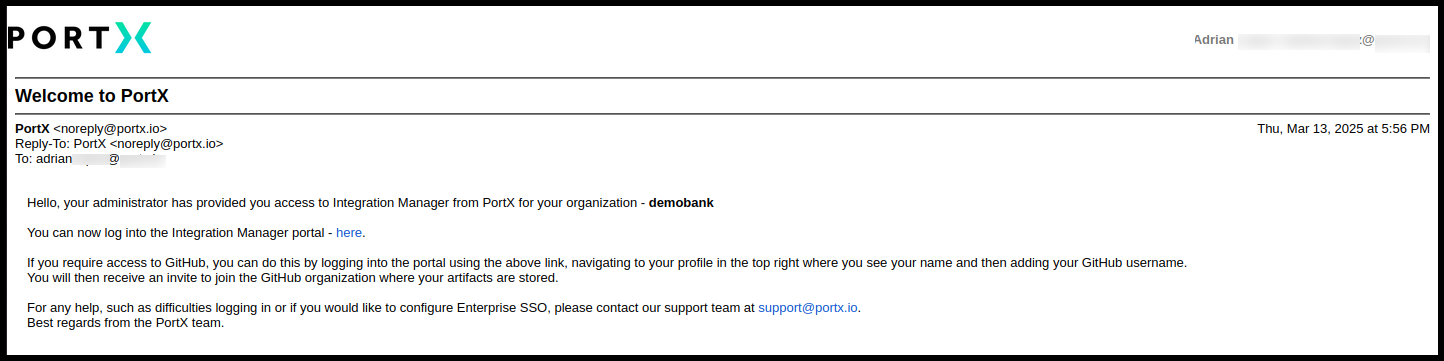
- To have received both emails (shown in Figure 1 and Figure 2)
- To install Tailscale on their computer
- To have their mobile device
- To have 1 of these 3 authenticator applications on their mobile device, or the ability to download 1 of the 3 now to their mobile device to be able to access PortX:
- Microsoft Authenticator
- Google Authenticator
- FreeOTP
New Customer—Invitation Emails from PortX
Email 1—Introduction Email Titled “Welcome to PortX”
The Introduction email (shown in Figure 1) provides the following information:
- The name of your organization. (In Figure 1, the organization name is “demobank.”)
- The link to the PortX Integration Manager—Secure Module, or PortX Integration Access Manager (PIAM)
- GitHub access info and instruction
- Logging in, link to contact PortX support team for the following reasons:
- Provide assistance logging in if needed
- Configure Enterprise SSO if your company chooses to have SSO
Email 2—Instruction Email Titled “Update Your Account”
The Instruction email (shown in Figure 2) informs the new customer that they need to perform the following tasks:
- Click on the Link (that will expire in 15 minutes) to open the PortX platform to perform the following tasks:
- Update password
- Update profile
- Verify email
- Configure one-time password (OTP)
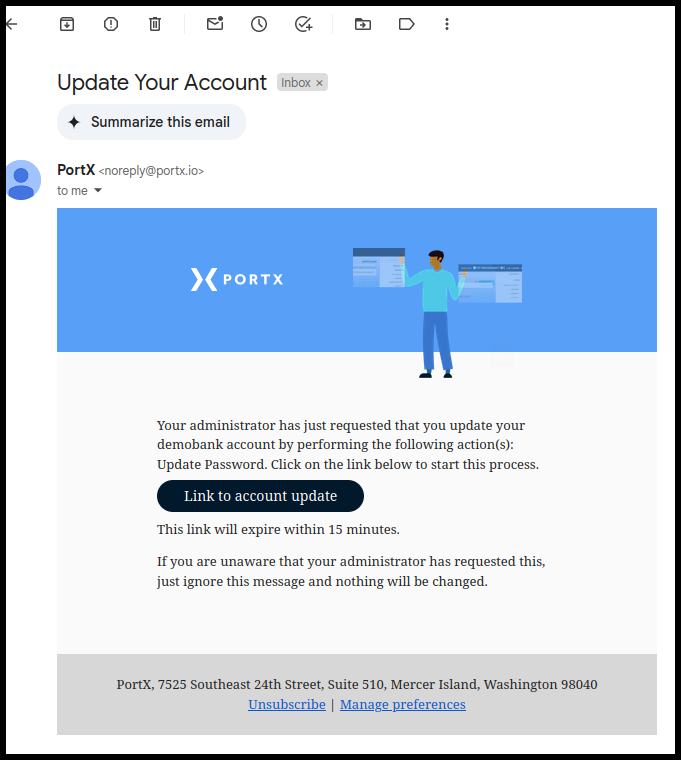
Figure 2. PortX Instruction Email to New Customer
New Customer—Logging in for the First Time
The new Customer must have one of the following authentication applications installed on their mobile device, or be able to install it now to be able to access PortX:
- Microsoft Authenticator
- Google Authenticator
- FreeOTP
If Enterprise SSO is not set up then the authentication application must be used each and every time at login. (To set up Enterprise SSO, please contact Customer Support.)
For security reasons, PortX times out after a few minutes of being idle and the person must log in again.
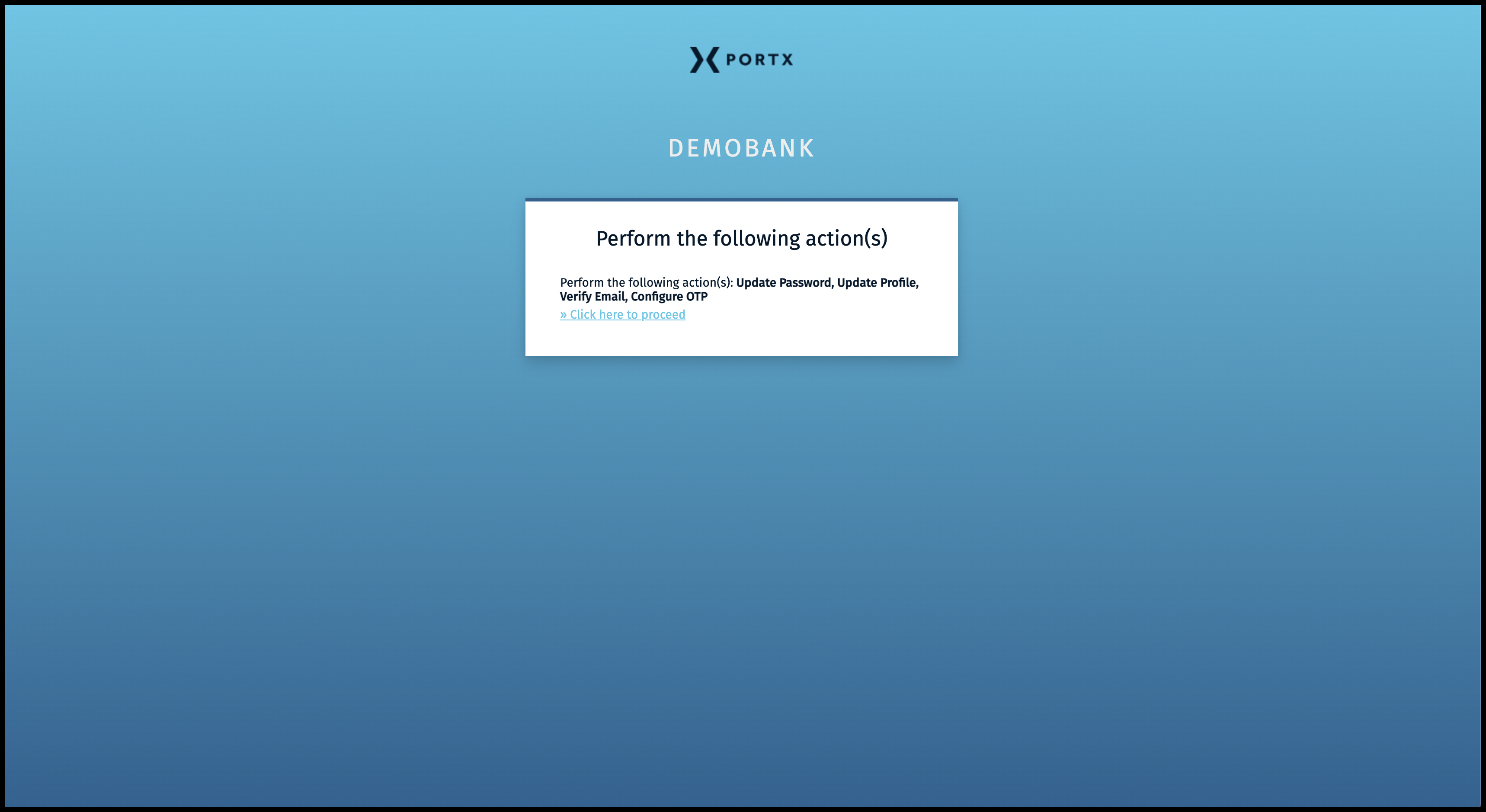
Click on the link in the window shown as Click Here to Proceed to perform Update Password, Update Profile, Verify Email, Configure One-Time Password (OTP) (as shown in Figure 3).
The Mobile Authenticator Setup page opens (as shown in Figure 4).
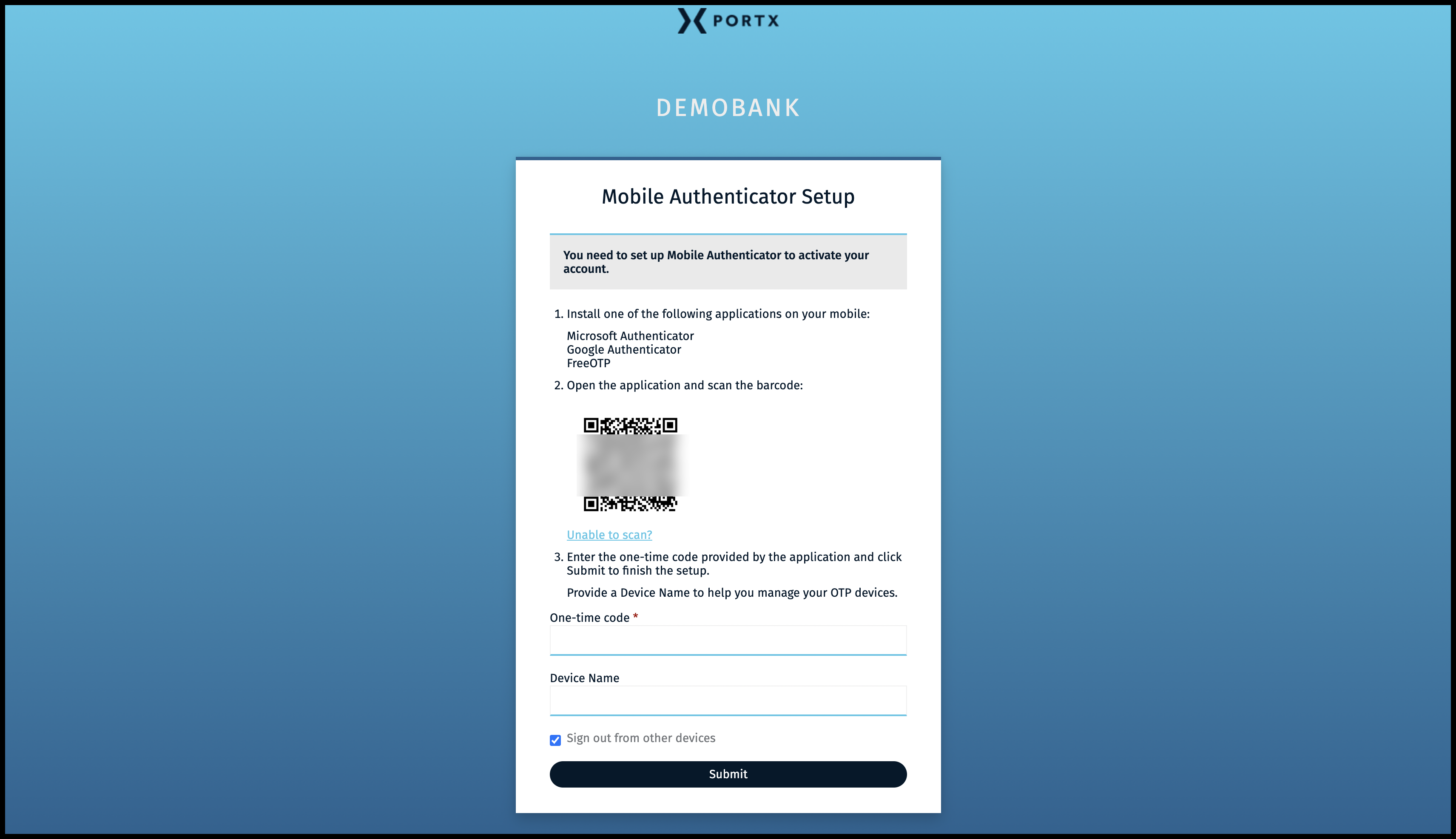
Use one of the authenticator applications on your mobile device to scan the QR code similar to the one shown in Figure 4 (some of the QR code in Figure 4 is deliberately blurred).
- Enter the one-time code from the authenticator (enter this info from your authenticator AFTER entering the next 2 pieces or your log in may time out while you are entering your next 2 items).
- Enter a device name (optional).
- Check box of “Sign out from other devices.” Determine whether you want to check mark this box or not.
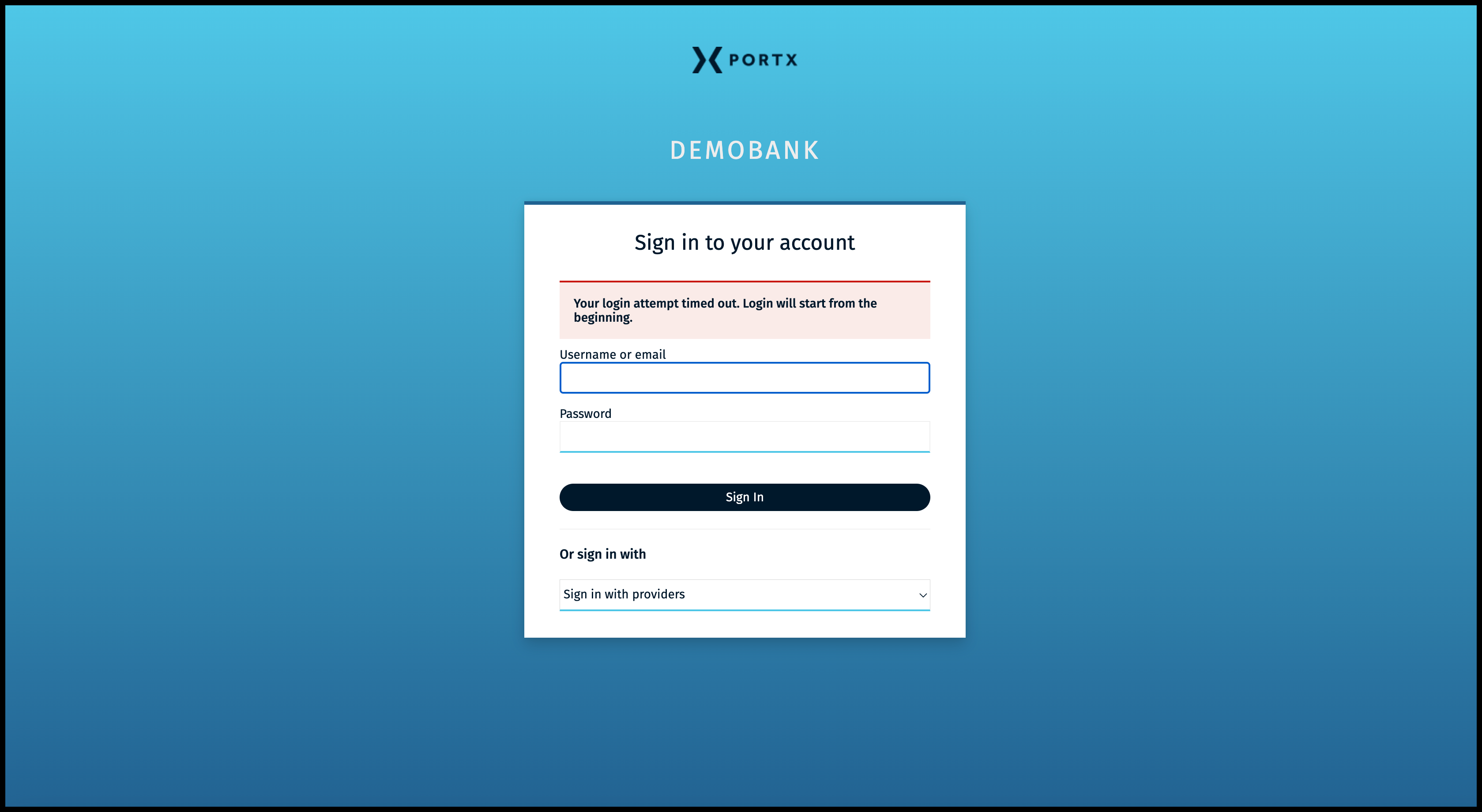
If your login attempt timed out, you will receive a message (as shown in Figure 5). Repeat the login process.
User Password Requirements
User password must meet the following requirements:
- Minimum 12 characters including alphanumeric and special characters
- Minimum 1 upper case letter
- Minimum 1 lower case letter
- Minimum 1 number
- Minimum 1 special character
New Customer—Logging in After the First Time
To set up Enterprise SSO, please contact Customer Support.
If Enterprise SSO is not set up, each time you log in you need the following items:
- Your mobile device
- The authenticator application that you used when you first authenticated to first log in
- User name or email address that is in your Introduction email (as shown in Figure 1). Your user name or email address will also likely be stored in your authenticator application.
- Your password that you set on your first login that meets these requirements:
- Minimum 12 characters including alphanumeric and special characters
- Minimum 1 upper case letter
- Minimum 1 lower case letter
- Minimum 1 number
- Minimum 1 special character
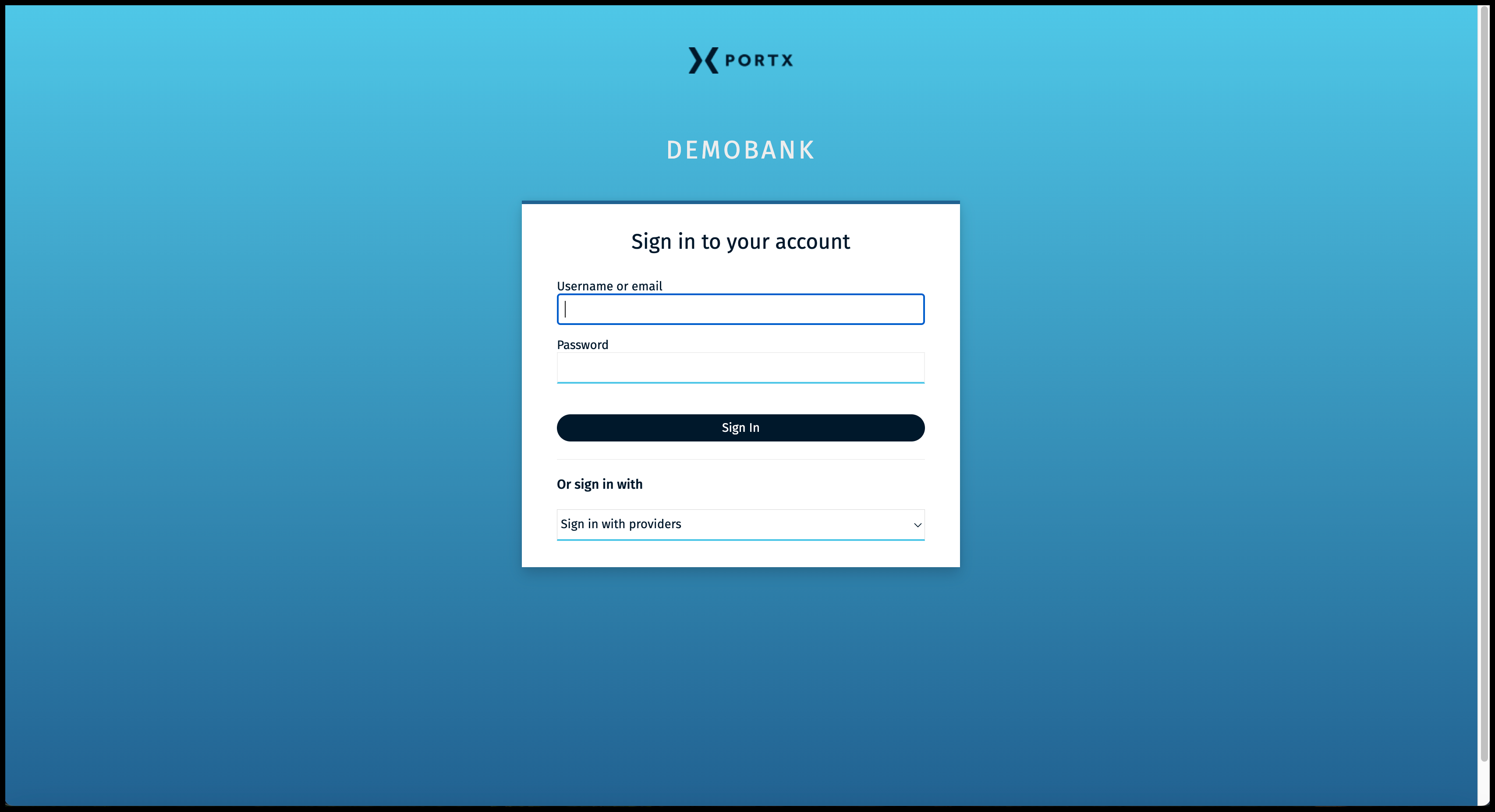
To log in, perform these steps on the PortX Platform Login Page (as shown in Figure 6):
- Enter your user name or email address
- Enter your password
- Open your Authenticator application on your mobile device
- Use the entry for your organization name and myportx.com
- Wait until your authenticator application starts its cycle and you will have enough time to click on the sign in button AND to enter the one-time code on the next page
- Click on the Sign In button
The one-time code page opens (as shown in Figure 7).
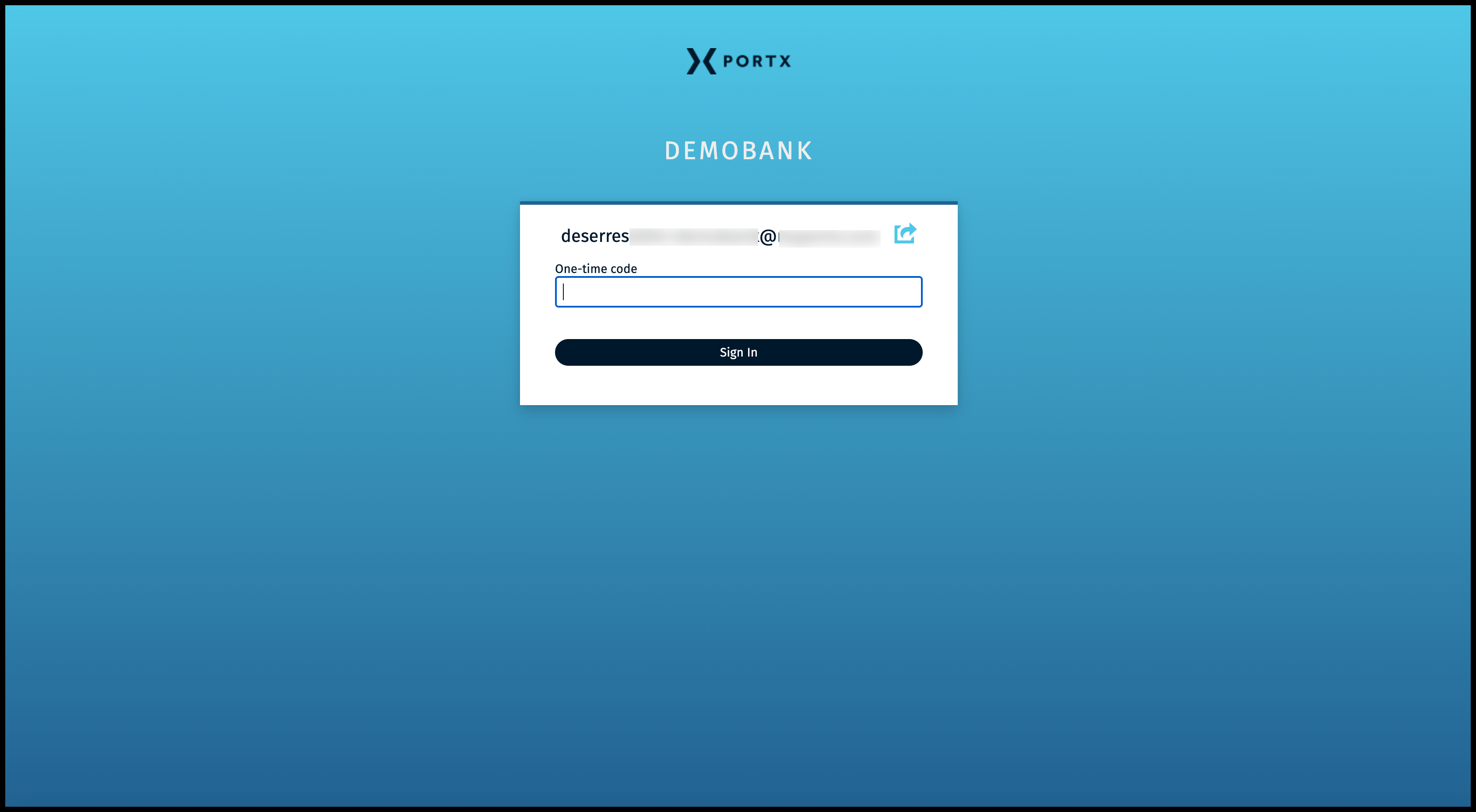
From your Authenticator application (on your mobile device), enter your one-time code.
Click on the Sign In button.
The PortX Platform Main Page opens (as shown in Figure 8). Depending on your Role, you may or may not see all of the PortX Products on this page.
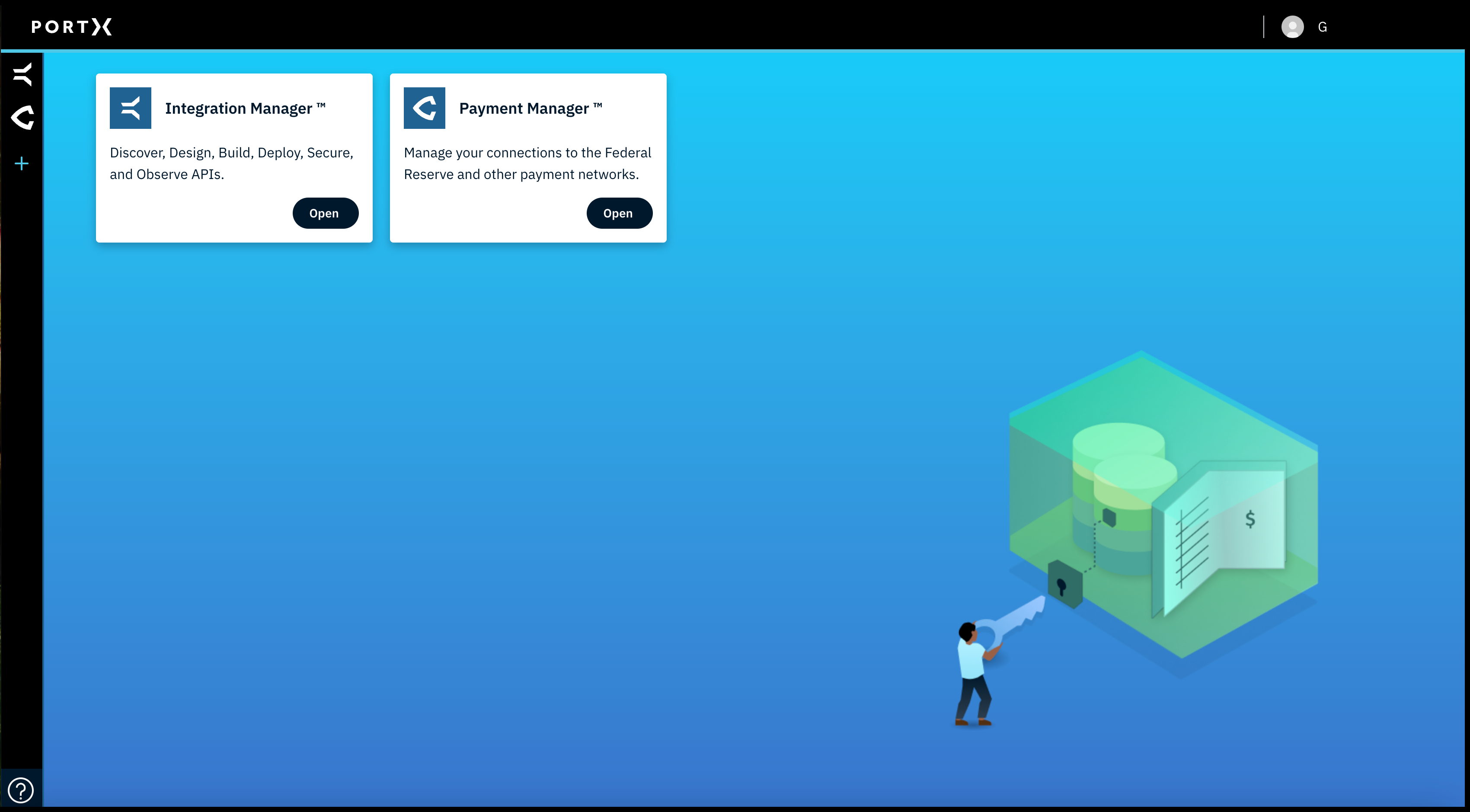
You are successfully logged in.